
Create Your Account
New to Seen Markets?
New to Seen Markets?
Create your free account at seenmarkets.com/signup or download the Seen Markets mobile app (iOS / Android). You can also sign in with Google or Apple.After creating your account, you’ll set up your organization — this is your central hub for managing all your markets, team members, and settings.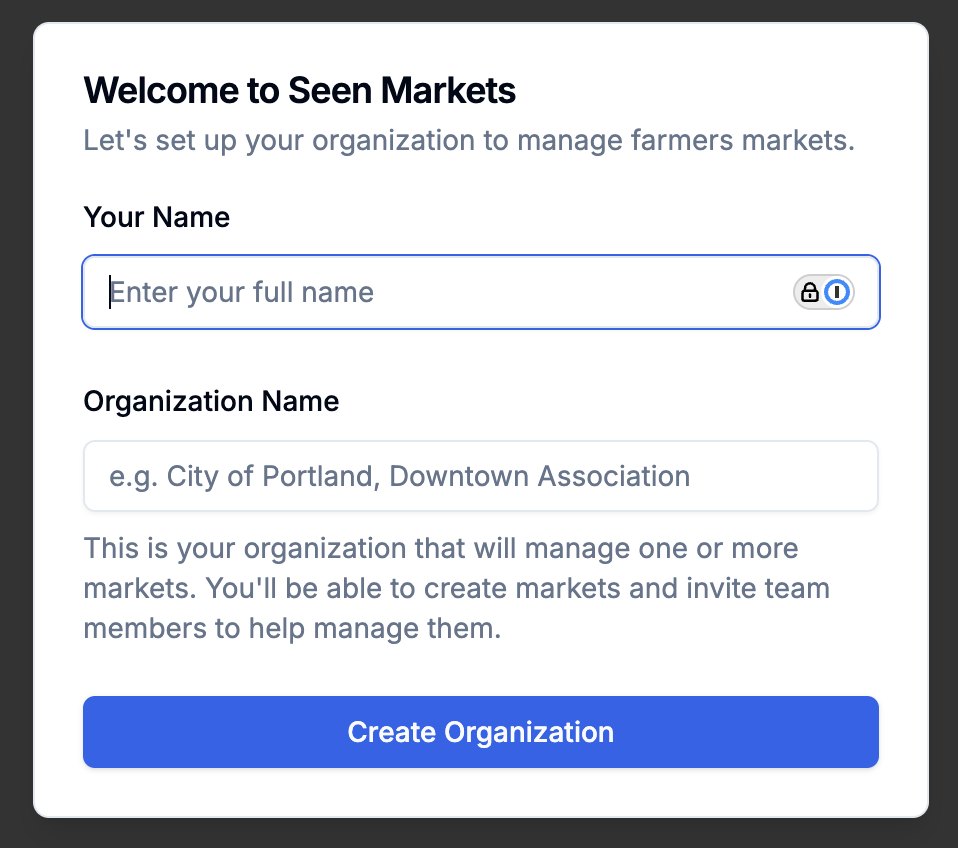
Already have an account?
Already have an account?
Sign in at seenmarkets.com/signin or in the mobile app to continue managing your markets.
Pricing
Your first event is free. To create unlimited events, upgrade to Pro:- Mobile app: Subscribe via Apple (App Store) or Google Play.
- Web: Subscribe via Stripe at seenmarkets.com.
Creating Your First Market
1
Click Create Market
On the web: click Create Market at the top of your dashboard.
In the app: tap the + Add button on the Schedule tab.
2
Fill Out Market Details
- Market Name — the official name of your event.
- Description — a brief overview shown to vendors and shoppers.
- Address Information — the physical location.
- Contact Information — name, phone, email (visible to vendors and shoppers who need to reach you).
3
Set Market Schedule
- Start Date and Time — when the market begins.
- End Date and Time — when the market ends.
- Timezone — your market’s timezone.
- Is Recurring? — mark if this is a recurring market (you’ll add more dates later by duplicating).
4
Configure Admission (optional)
- Has Admission Fee? — if shoppers pay to attend, set the amount. This is for display only; booth fees for vendors are handled separately via payments.
5
Add Social Links and FAQs (optional)
Add your Instagram, TikTok, X, Facebook, YouTube, custom links, and FAQs. These appear on the market page and Digital Market Guide.
6
Create
Review everything and click Create Market.
After Creating Your Market
You’ll be directed to your markets list. Click Manage to open the market management page — your central hub for everything related to this event.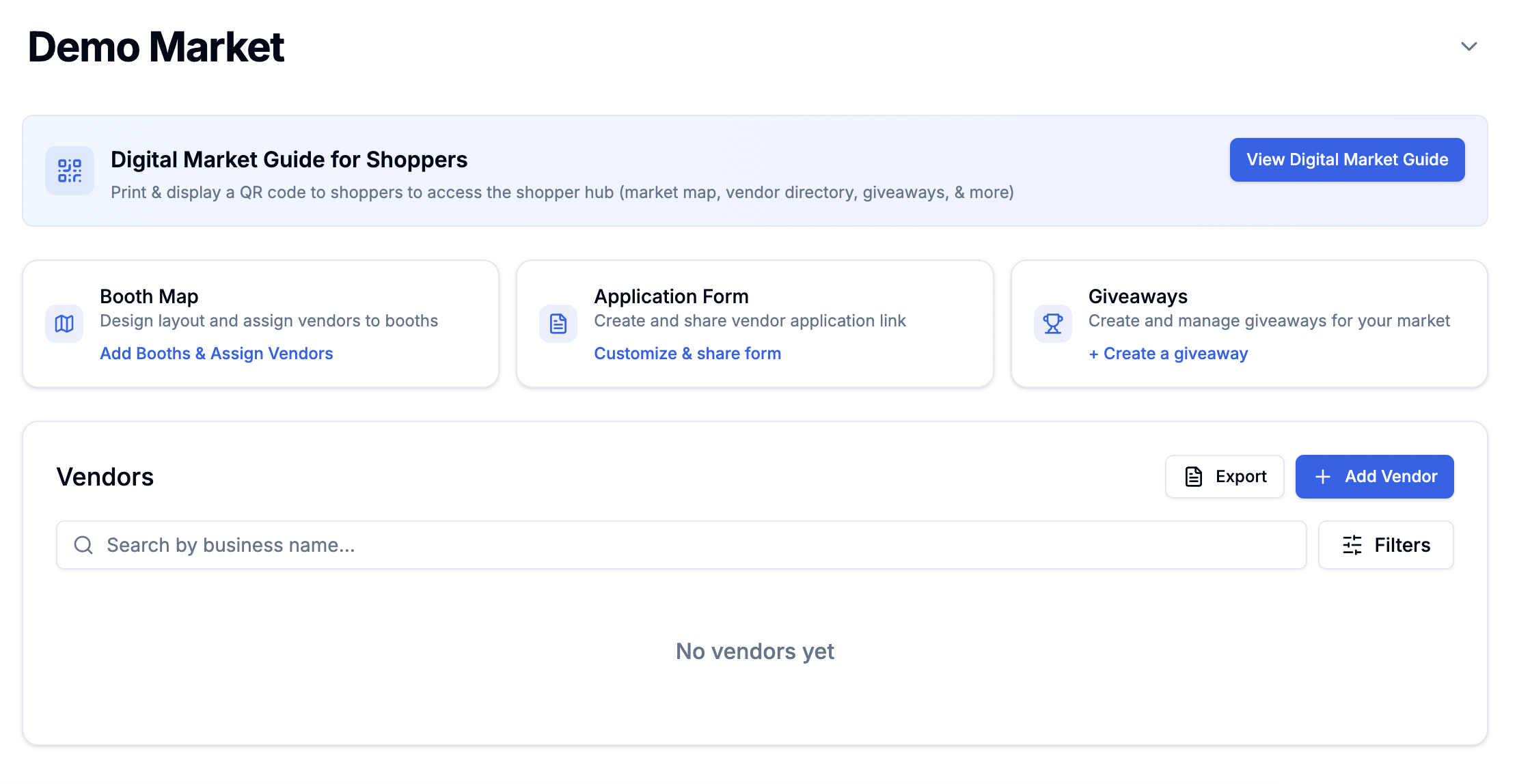
Market Management Dashboard — your hub for managing all aspects of your market
What to Set Up Next
1. Set Up Payments
Connect Stripe to collect booth fees and application fees from vendors. Go to Settings → Payments or use the getting started checklist in the mobile app.- We charge a 2% processing fee on top of Stripe’s standard fees (0% on Pro Plus and Pro Concierge plans).
- You can optionally pass the platform fee to vendors.
2. Customize Your Application Form
Open the Application Form from the market management page. Add custom questions, set a deadline, configure auto-waitlist, and add terms & conditions. Then share the application link with vendors. Full details: Vendor Application Form3. Design Your Booth Map
Open the Booth Map to design your layout. Add booths, landmarks, upload a background image (venue floor plan), and optionally set booth prices and enable vendor self-selection. Full details: Booth Map Designer | How to edit my event map4. Share Your Links
From the market management page (or the mobile app), share:- Application Form — the direct link vendors use to apply. → How to share my market
- Market Page — a public marketing page with vendor list, application link, and details.
- Digital Market Guide — what shoppers use at the market (booth map, giveaways, community signup). Download the QR code for signage. → Digital Market Guide
5. Share Your Schedule Page
Your organization has a public schedule page listing all your upcoming events. Share this link so vendors and shoppers can see your full calendar and apply to any event. Full details: How to add my schedule to my website6. Set Up a Giveaway (optional)
Create a giveaway to engage shoppers at the event — vendor-sponsored prizes with social follow requirements and automated winner selection. Full details: How to set up a giveaway | Giveaways7. Add Team Members (optional)
Invite people to help manage your markets. Team members can access everything in your organization. Full details: How to add team members8. Set Up Email Integrations (optional)
Sync your vendor and shopper lists to Flodesk or Mailchimp for email marketing. Full details: Email Integrations9. Message Your Vendors
Once vendors start applying, you can send market-wide announcements or DM individual vendors directly. Full details: How to message vendors | Send UpdatesAdding Recurring Dates
If you run a weekly, monthly, or seasonal market:- Create your first event for the first date.
- Use Add another date (duplicate) to create the next date — copies the application form, booth map, vendors, and settings.
- Each date is its own event so you manage them separately.
- Vendors apply to one date, then can quickly apply to your other dates from their portal with prefilled info.
Using the Mobile App
The Seen Markets mobile app lets you create events, add recurring dates, message vendors, share links, and manage on the go. Detailed setup (booth map design, application form editing, vendor table) is easier on the web. Full details: Mobile App | Mobile app for hosts | Mobile app for vendorsAll Guides and Tutorials
Full Demo
Watch how the entire platform works for hosts and vendors
Payment Processing
Set up Stripe, collect booth fees, manage payments
Vendor Applications
Customize your form, set deadlines, configure auto-waitlist
Booth Map Designer
Design your layout, set booth prices, enable vendor self-selection
Vendor Management
Review applications, manage vendors, DMs, payments, notes
Digital Market Guide
Interactive shopper experience with booth map, giveaways, and community signup
Giveaways
Create giveaways to engage shoppers and build your community
Send Updates
Send announcements and DM vendors
Email Notifications
All automated emails sent by Seen Markets
Email Integrations
Sync vendors and shoppers to Flodesk or Mailchimp
Print Shop
Order professional signage, labels, banners, and more
Vendor Portal
What vendors see and how they manage their participation
Need help getting started? Contact us at
team@seenmarkets.com