
Overview
The Vendor Portal is where vendors manage everything about their market participation — applications, booth assignments, payments, messaging with hosts, loyalty rewards, and their business profile. It’s available on the web at seenmarkets.com and in the Seen Markets mobile app.Accessing the Portal
Vendors get access when they submit their first application or create an account. Sign in at seenmarkets.com or the mobile app.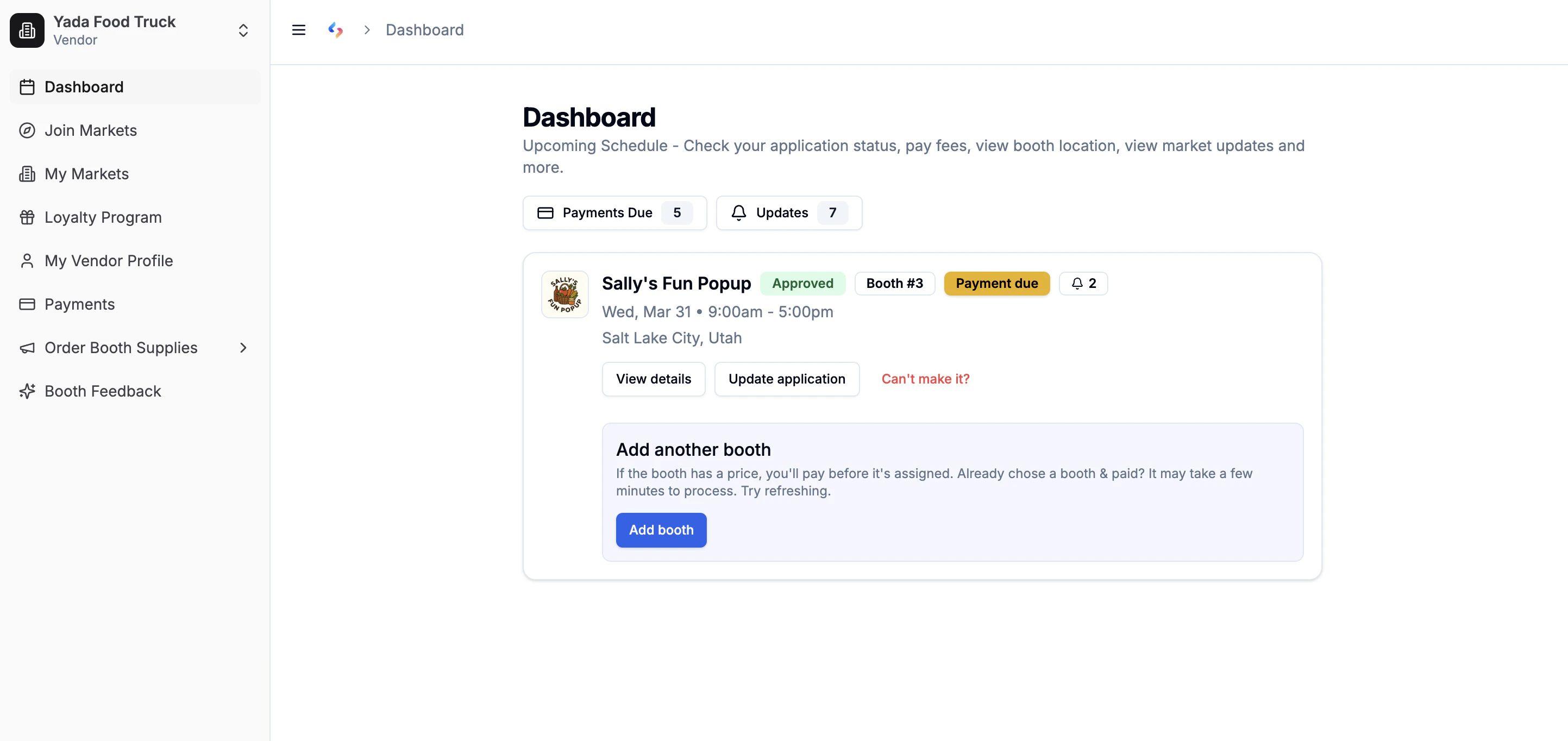
Vendor Portal Dashboard
Dashboard
The vendor dashboard shows:- Upcoming markets — all events you’ve applied to, with status (pending, approved, waitlisted, denied).
- Pending payments — outstanding payment requests from hosts with a link to pay.
- Market updates — notifications from hosts (schedule changes, reminders, etc.).
- Booth info — your assigned booth or option to pick one (when self-selection is enabled).
Managing Markets
Application Status
Track every application:- Pending — waiting for host review.
- Approved — you’re in. Check for booth assignment and payments.
- Waitlisted — on the list; you’ll be notified if a spot opens.
- Denied — not accepted for this event.
Apply to More Dates
If a host runs recurring events, you’ll see their other dates. Apply to additional dates with one tap — your business info is prefilled. Choose which dates you want to attend.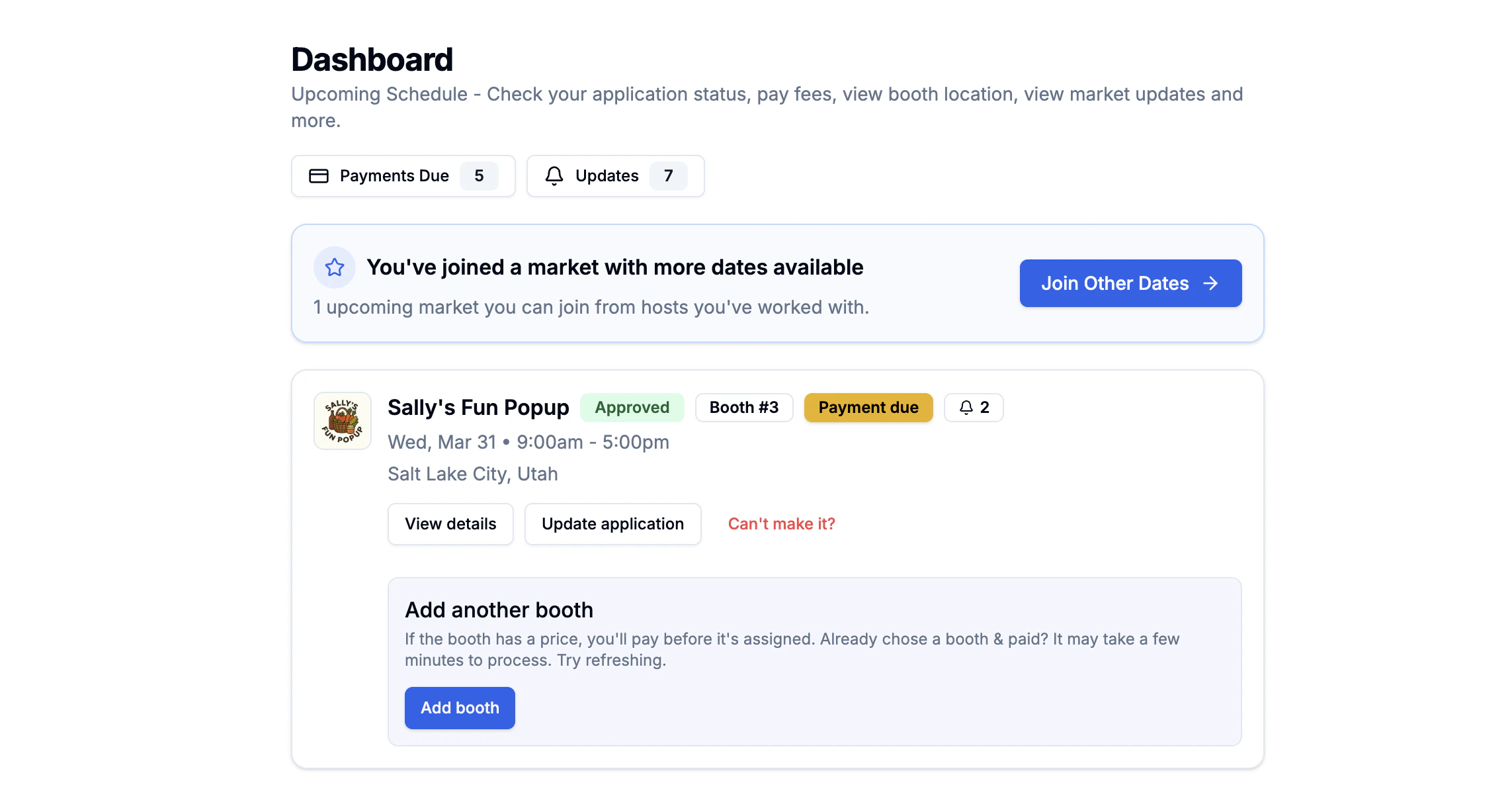
See other dates to join
Update Your Application
Made a mistake or need to change something? Open the market and tap Edit application to update your submission (opens on the web).Cancel Participation
Changed your mind? Open the market details and use Cancel participation to withdraw. The host will be notified.Explore and Find Markets
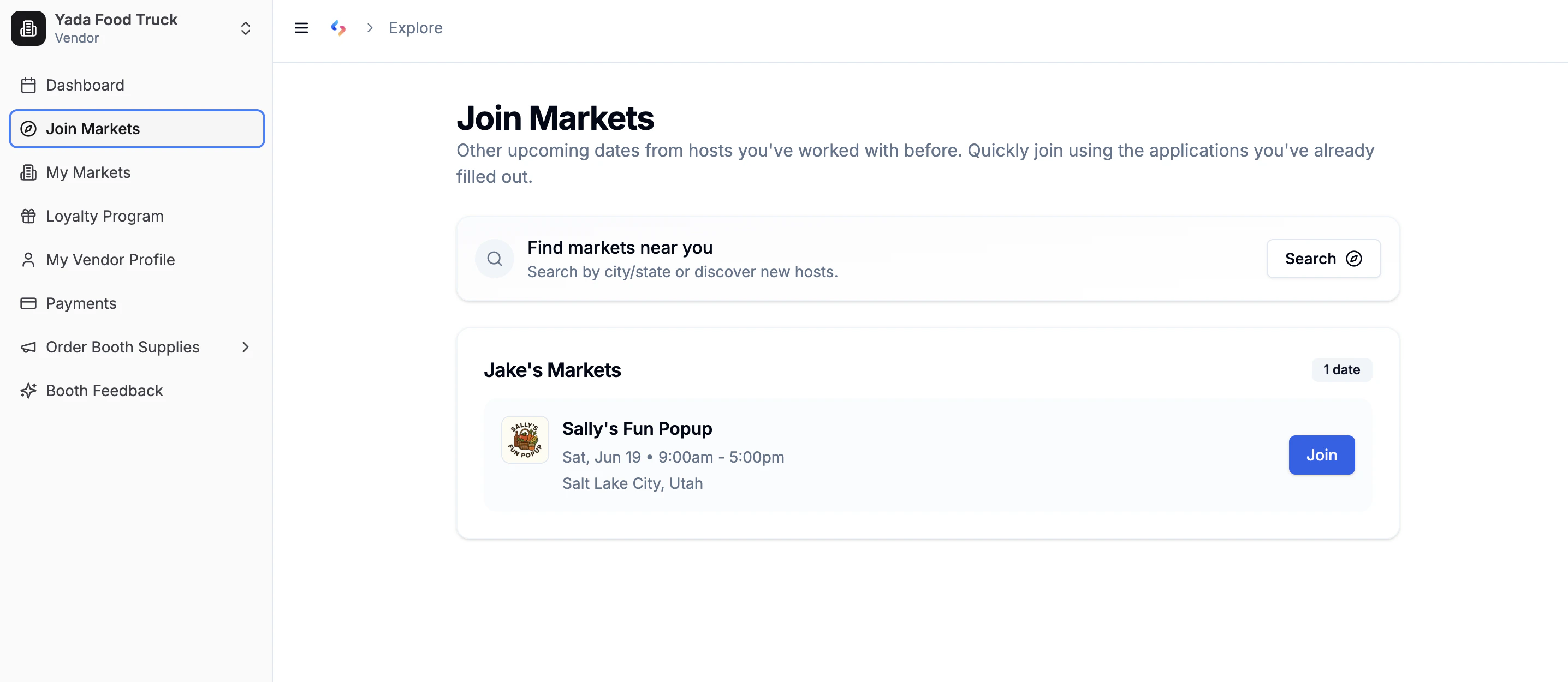
Explore & Join
Explore (app)
The Explore tab shows upcoming markets from hosts you’ve already worked with. An easy way to find more dates or new events from organizers you know.Find Markets (app)
Search for new markets by name, location, state, or “near me.” Apply directly from the results.Explore (web)
At seenmarkets.com/v/explore, browse markets from hosts you’ve worked with and apply to new dates.Find a Local Market (public directory)
Visit seenmarkets.com/find-a-local-market to browse a public directory of all published markets on Seen Markets. You can search by name, browse by state, or use your location to find markets near you. No login required.Booth Selection
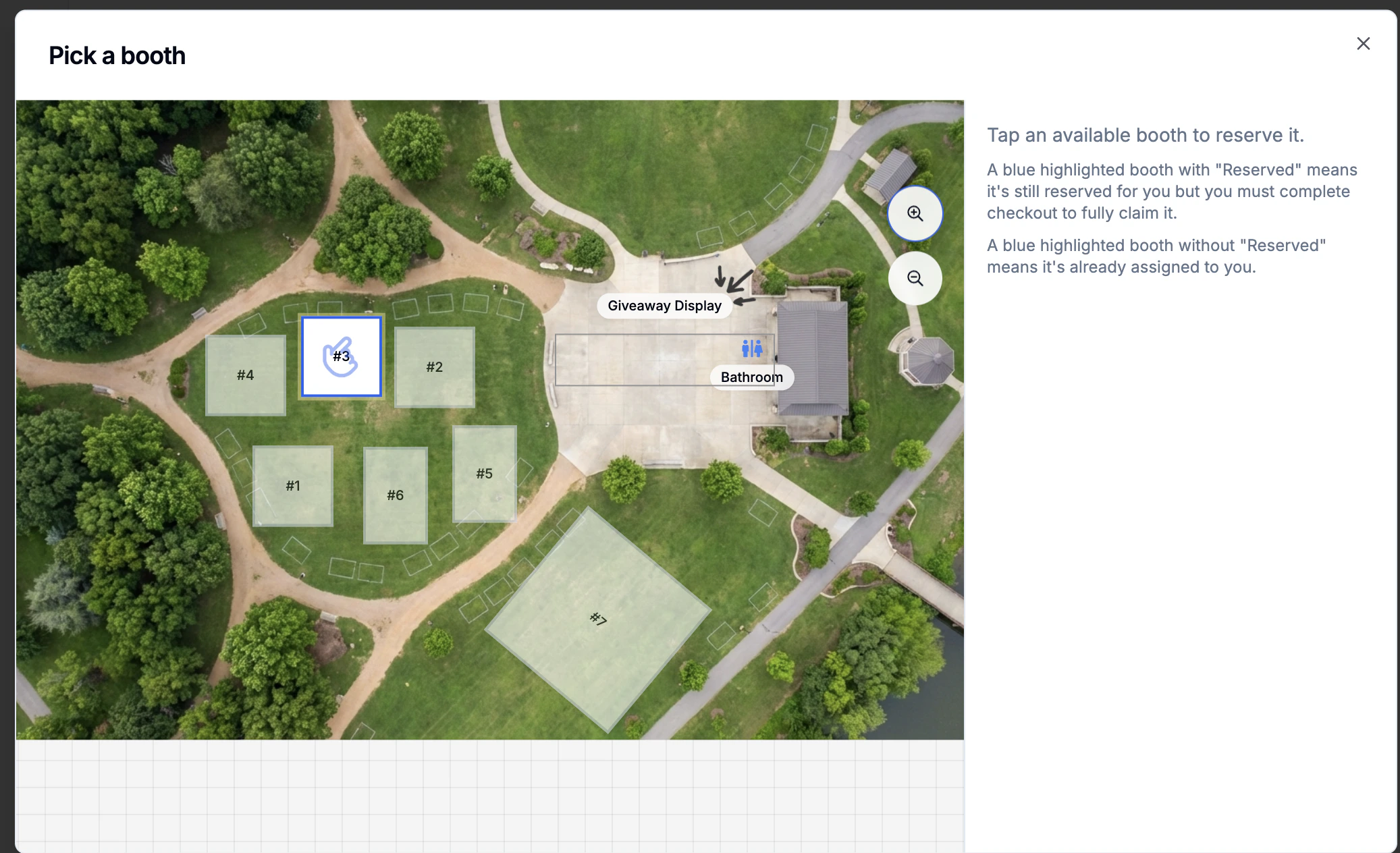
Booth Selection
- You see the interactive booth map with available booths.
- Select a booth. Free booths confirm immediately; paid booths go to Stripe checkout.
- Reservations have a time limit — complete checkout before the hold expires.
Payments
Payment Requests
When a host requests payment (e.g. booth fee):- You receive an email with a secure Stripe checkout link.
- The request also appears on your dashboard and in the mobile app.
- Tap Pay Now to complete the payment.
Payment History
View all past payments at seenmarkets.com/v/payments or in the mobile app under Menu → Payment History.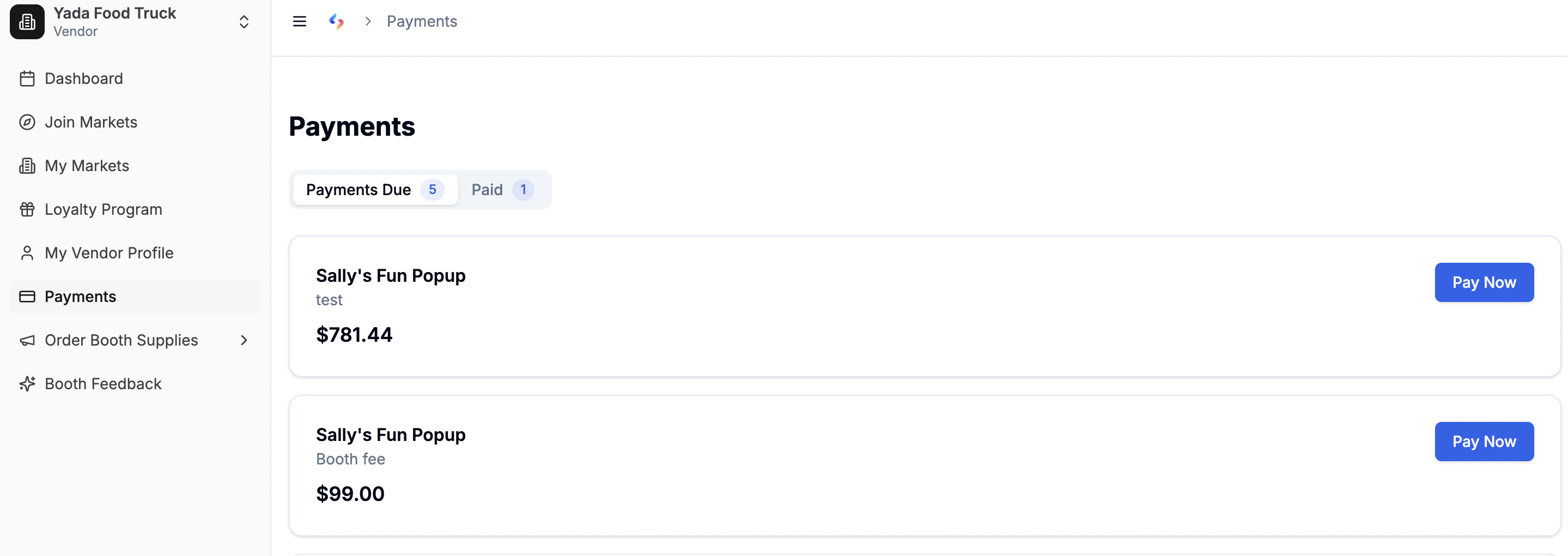
Payments due
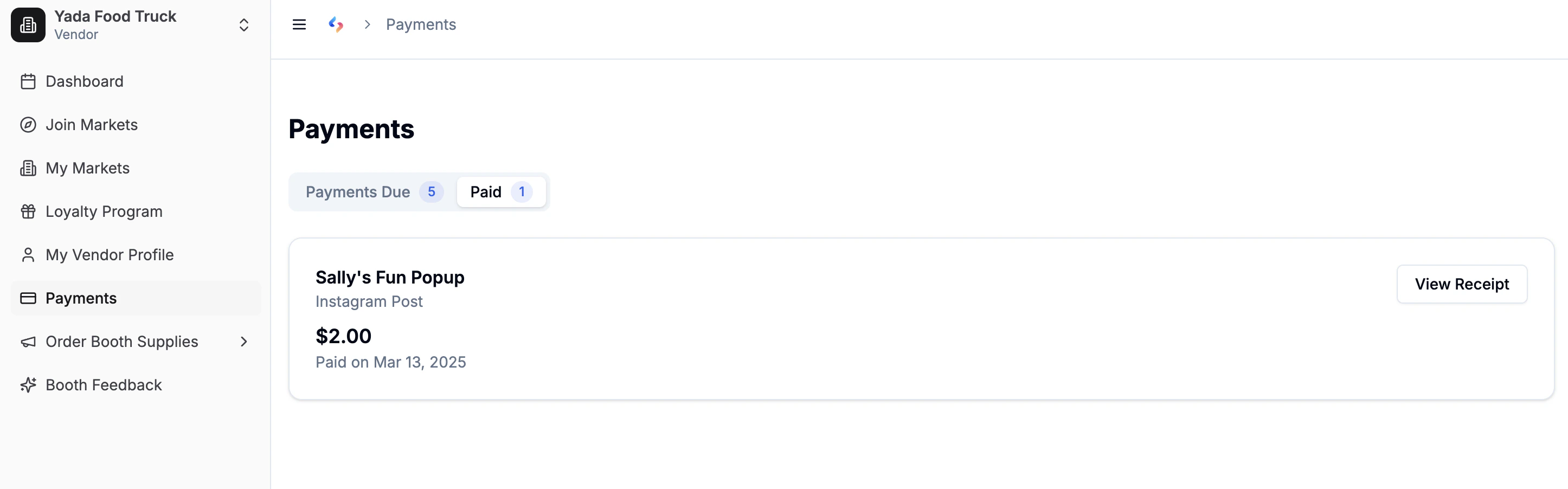
Payment history with receipt download
Direct Messaging
Message market organizers one-on-one from the web portal or mobile app.- Web — from your dashboard: Click Message host on any market card to open a thread with that organizer directly.
- Web — Messages page: Click Messages in the sidebar to see all your threads. Use the pen icon to start a new conversation with any organizer.
- App: Tap Message organizer from the market details, or go to the Messages tab for all conversations.
Loyalty Program
Some hosts run a loyalty program that rewards vendors for repeat participation:- See your progress toward the next reward in the app’s Loyalty tab or at seenmarkets.com/v/loyalty-program.
- Rewards are typically discounts on booth fees based on number of markets attended.
- Each host’s program is separate.
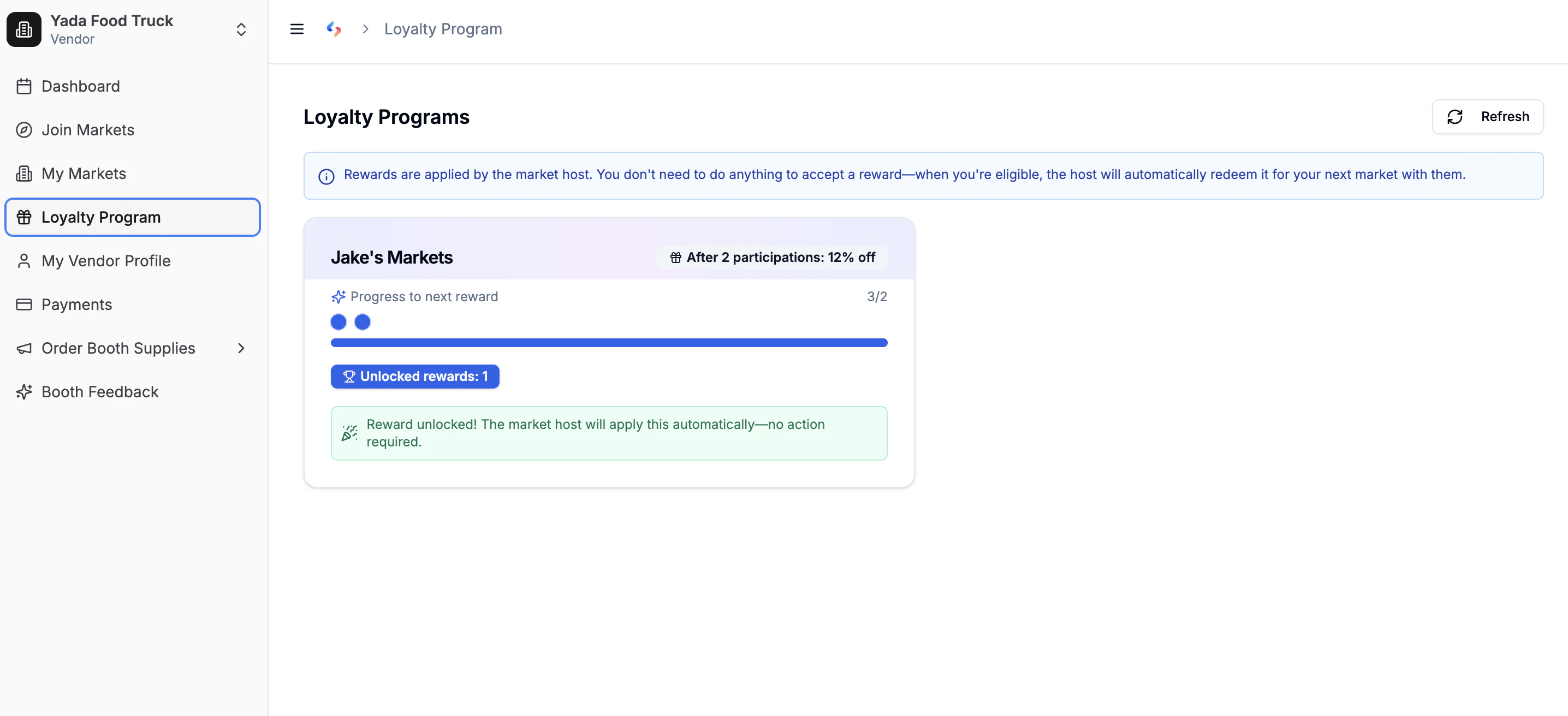
Loyalty program tracking for vendors
Profile Management
Keep your vendor profile updated — it’s used across all applications.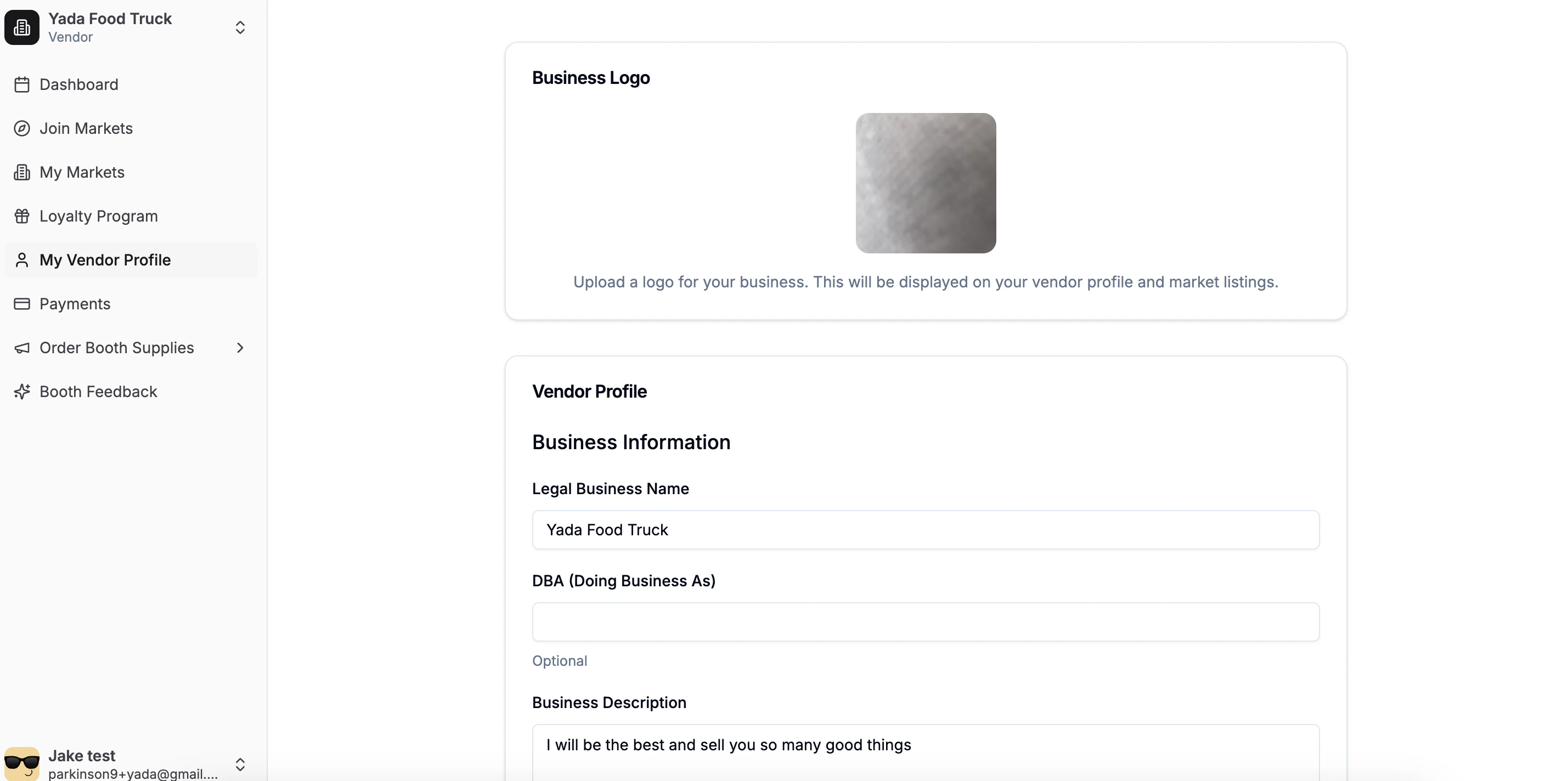
Vendor profile
What you can edit
- Business info — name, description, product categories.
- Logo — upload your business logo.
- Contact — email, phone.
- Address — business address.
- Social links — Instagram, TikTok, X, Facebook, YouTube.
- Payment methods — Venmo, Cash App, PayPal usernames (for hosts to see).
Your profile info automatically fills future market applications, saving time
and ensuring consistency.
Market Updates and Notifications
- Hosts can send market-wide updates (schedule changes, weather alerts, setup instructions).
- Updates appear on your dashboard and in the market details.
- You also receive an email notification.
- All updates are preserved for future reference.
Booth Design
seenmarkets.com/judge-my-booth In the mobile app’s Booth Design tab:- Get AI feedback — upload a photo of your booth setup and get suggestions.
- Order booth supplies — labels, packaging, bags, banners, signs, business cards, posters from the Print Shop.
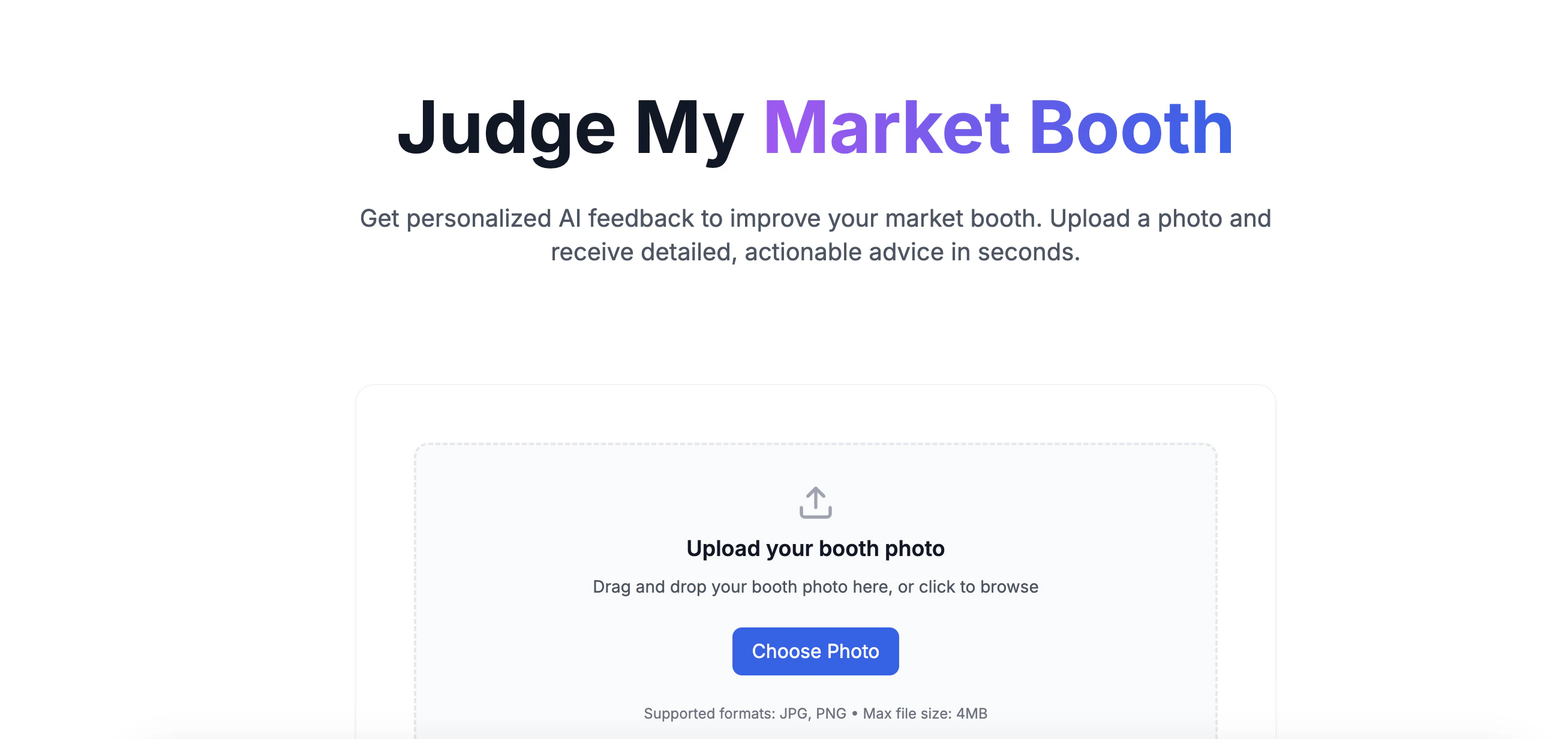
Get booth design suggestions
Best Practices
Profile Management
Profile Management
- Keep contact information current.
- Upload a quality logo — it appears on booth maps and market pages.
- Update product categories so hosts know what you sell.
- Add social links so hosts can promote you.
Staying Informed
Staying Informed
- Enable push notifications in the app.
- Check your dashboard regularly for updates and payment requests.
- Review booth assignment details before event day.
Market Preparation
Market Preparation
- Apply to recurring dates early — popular events fill up.
- Choose your booth promptly when self-selection opens.
- Order booth supplies well before the event.
- Review the Digital Market Guide to see what shoppers will see.
Frequently Asked Questions
How do I get portal access?
How do I get portal access?
Your account is created when you submit your first application or sign up at
seenmarkets.com. The mobile app uses the same account.
How do I update my profile?
How do I update my profile?
On the web: go to your profile page. In the app: tap Edit Profile from
the header. Changes apply to all future applications.
Can I see past markets?
Can I see past markets?
Yes. Your complete market history — past participation, payments, and
messages — is available in your dashboard.
Can I message hosts?
Can I message hosts?
Yes. Use the Message host button on any market card in your dashboard, or go to the Messages page in the sidebar. You can also tap Message organizer from the market details in the app, or use the Messages tab for all threads. Every DM also sends an email notification so nothing gets missed.
Can I also become a market host?
Can I also become a market host?
Yes. Your Seen Markets account can be both a vendor and a host. Create an
organization from your account menu and switch between contexts. See the
become a host guide for details.
Next Steps
Print Shop
Order booth supplies and signage
Digital Market Guide
Preview your booth in the market guide
Mobile App
Use the mobile app as a vendor