> ## Documentation Index
> Fetch the complete documentation index at: https://guides.seenmarkets.com/llms.txt
> Use this file to discover all available pages before exploring further.
# Print Shop
> Order professional market materials and signage
## Overview
The Print Shop helps market hosts and vendors create professional marketing materials. From labels to banners, business cards to packaging, we offer a variety of products with customizable templates or the option to use your own designs.
## Accessing the Print Shop
You can access the Print Shop in two ways:
1. Visit [seenmarkets.com/print](https://seenmarkets.com/print)
2. In the app: Navigate to Marketing -> Order Signs, Banners, & Prints
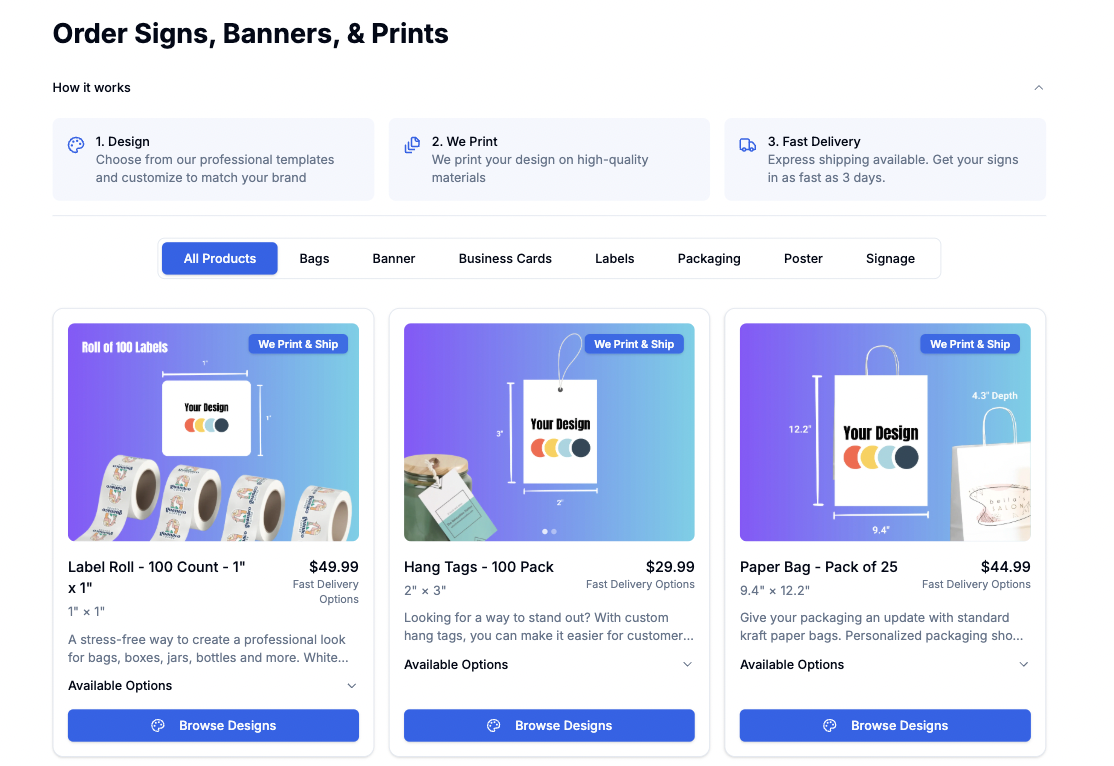 ## Available Products
Product and packaging labels
Market and vendor displays
Professional vendor cards
Custom shopping bags
Promotional materials
Market and booth signage
Product identification
## Design Process
### Step 1: Choose Your Product
Browse our product categories to find what you need:
* Select from various product types
* Review size options
* Check material choices
* Compare pricing
### Step 2: Select a Design
## Available Products
Product and packaging labels
Market and vendor displays
Professional vendor cards
Custom shopping bags
Promotional materials
Market and booth signage
Product identification
## Design Process
### Step 1: Choose Your Product
Browse our product categories to find what you need:
* Select from various product types
* Review size options
* Check material choices
* Compare pricing
### Step 2: Select a Design
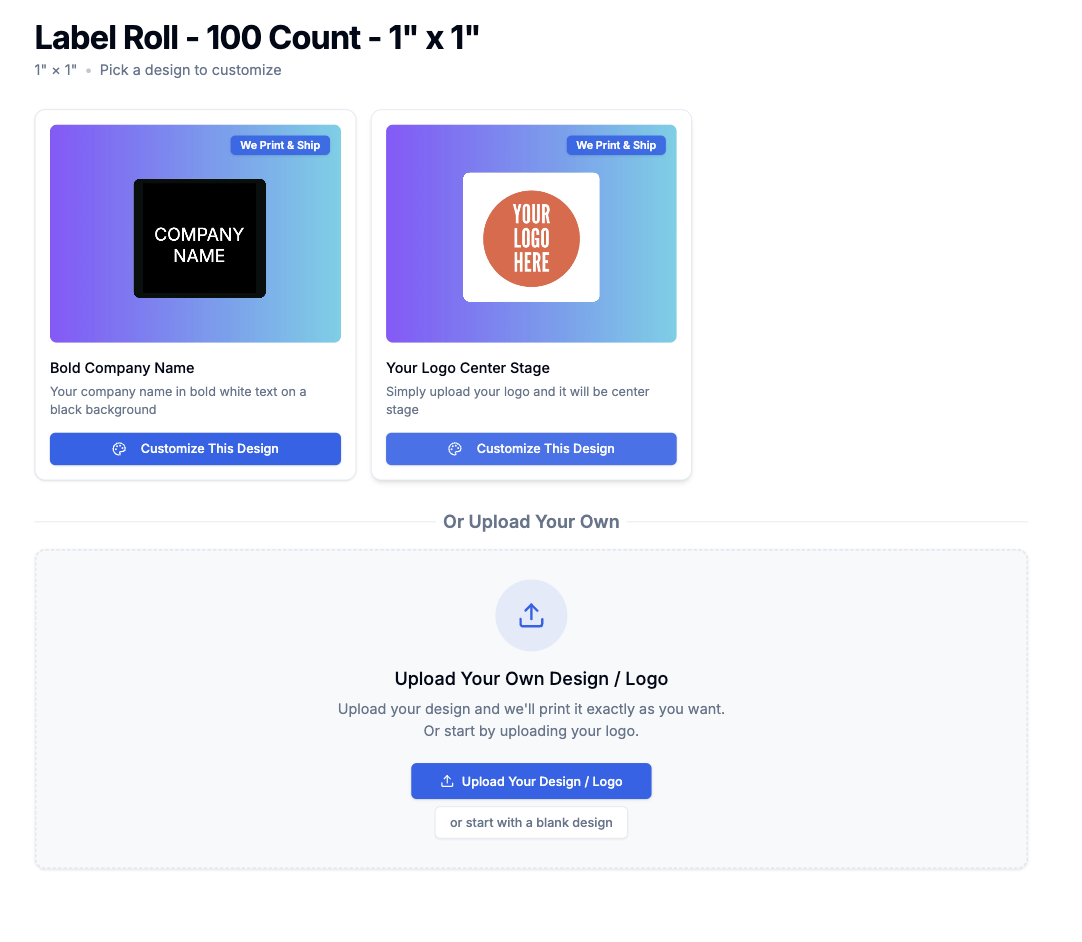 Choose from three options:
1. **Use a Template** (Recommended)
* Professional pre-made designs
* Easy to customize
* Market-tested layouts
2. **Upload Your Design**
* Use your own artwork
* Import existing materials
* Complete creative control
3. **Start Blank**
* Create from scratch
* Full design freedom
* No design constraints
### Step 3: Customize Your Design
Choose from three options:
1. **Use a Template** (Recommended)
* Professional pre-made designs
* Easy to customize
* Market-tested layouts
2. **Upload Your Design**
* Use your own artwork
* Import existing materials
* Complete creative control
3. **Start Blank**
* Create from scratch
* Full design freedom
* No design constraints
### Step 3: Customize Your Design
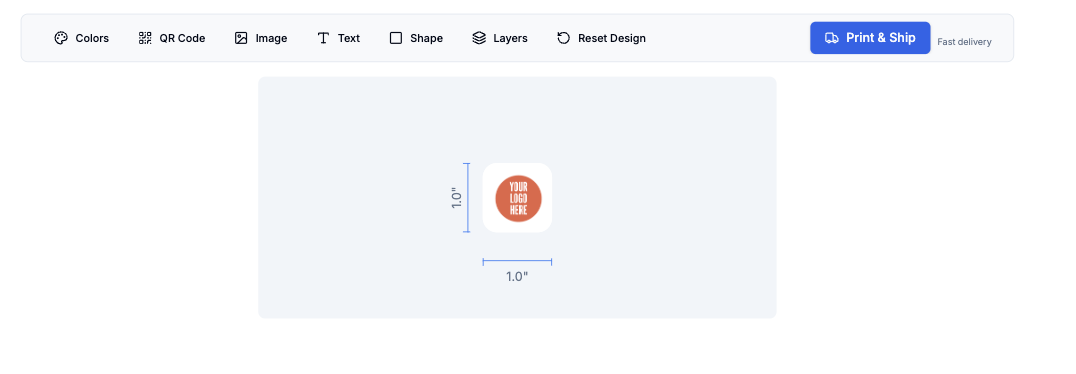 Our editor lets you:
* Add and edit text
* Upload images
* Insert QR codes
* Adjust colors
* Change layouts
* Modify elements
For market hosts: You can easily add your Digital Market Guide QR code to any
design.
### Step 4: Print & Ship
Once your design is complete:
1. Click "Print & Ship"
2. Review your design
3. Select quantity
4. Enter shipping details
5. Complete your order
## Best Practices
* Use high-resolution images - Keep text readable - Include contact
information - Maintain consistent branding
* Ensure adequate size - Maintain quiet zone around code - Test scan before
ordering - Include call-to-action text
* Order extras for backup - Allow time for shipping - Consider weather
durability - Check measurements twice
## Frequently Asked Questions
Yes, you can upload your own designs or start with a blank canvas. We
recommend using our templates as a starting point.
Shipping times vary by product and location. Estimated delivery dates are
shown at checkout.
We accept most common image formats including JPG, PNG, and PDF files.
## Next Steps
Create QR code signage
Order booth number signs
Design promotional materials
{" "}
Our editor lets you:
* Add and edit text
* Upload images
* Insert QR codes
* Adjust colors
* Change layouts
* Modify elements
For market hosts: You can easily add your Digital Market Guide QR code to any
design.
### Step 4: Print & Ship
Once your design is complete:
1. Click "Print & Ship"
2. Review your design
3. Select quantity
4. Enter shipping details
5. Complete your order
## Best Practices
* Use high-resolution images - Keep text readable - Include contact
information - Maintain consistent branding
* Ensure adequate size - Maintain quiet zone around code - Test scan before
ordering - Include call-to-action text
* Order extras for backup - Allow time for shipping - Consider weather
durability - Check measurements twice
## Frequently Asked Questions
Yes, you can upload your own designs or start with a blank canvas. We
recommend using our templates as a starting point.
Shipping times vary by product and location. Estimated delivery dates are
shown at checkout.
We accept most common image formats including JPG, PNG, and PDF files.
## Next Steps
Create QR code signage
Order booth number signs
Design promotional materials
{" "}