> ## Documentation Index
> Fetch the complete documentation index at: https://guides.seenmarkets.com/llms.txt
> Use this file to discover all available pages before exploring further.
# Vendor Portal
> Centralized hub for vendors to manage their market participation
## Overview
The Vendor Portal is where vendors manage everything about their market participation — applications, booth assignments, payments, messaging with hosts, loyalty rewards, and their business profile. It's available on the web at [seenmarkets.com](https://seenmarkets.com) and in the Seen Markets mobile app.
## Accessing the Portal
Vendors get access when they submit their first application or create an account. Sign in at [seenmarkets.com](https://seenmarkets.com) or the mobile app.
 ## Dashboard
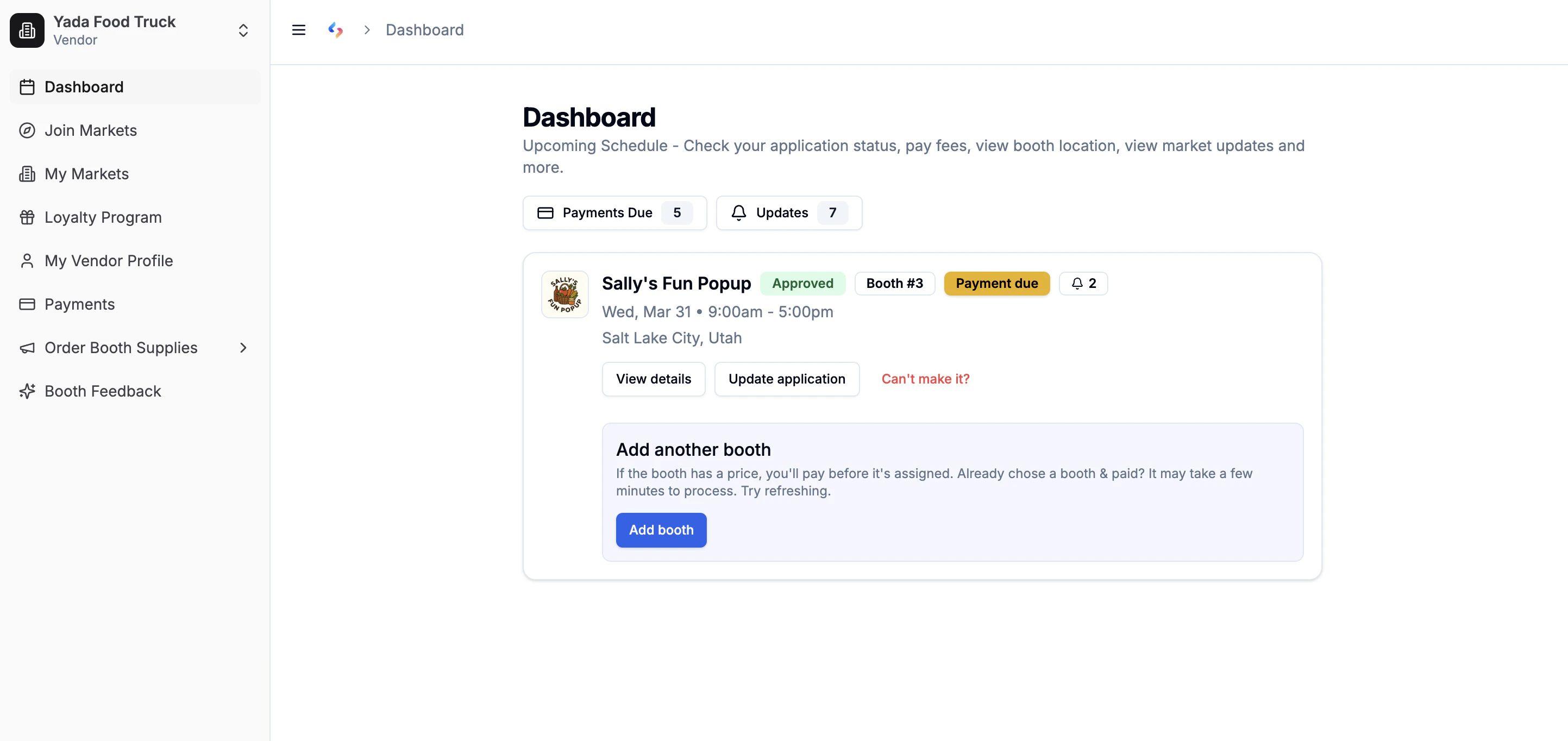
The vendor dashboard shows:
* **Upcoming markets** — all events you've applied to, with status (pending, approved, waitlisted, denied).
* **Pending payments** — outstanding payment requests from hosts with a link to pay.
* **Market updates** — notifications from hosts (schedule changes, reminders, etc.).
* **Booth info** — your assigned booth or option to pick one (when self-selection is enabled).
## Managing Markets
### Application Status
Track every application:
* **Pending** — waiting for host review.
* **Approved** — you're in. Check for booth assignment and payments.
* **Waitlisted** — on the list; you'll be notified if a spot opens.
* **Denied** — not accepted for this event.
### Apply to More Dates
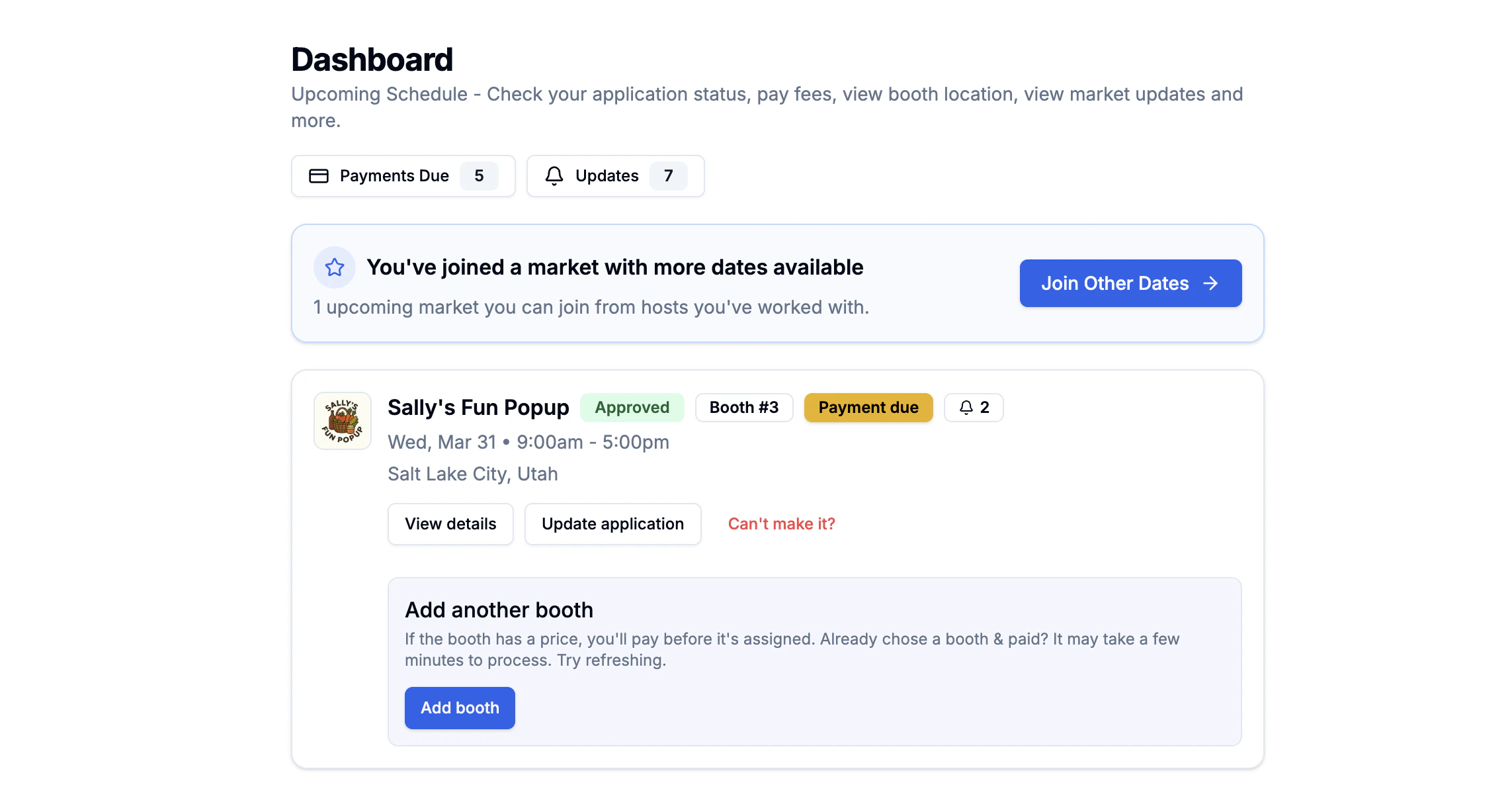
If a host runs recurring events, you'll see their other dates. Apply to additional dates with **one tap** — your business info is prefilled. Choose which dates you want to attend.
## Dashboard
The vendor dashboard shows:
* **Upcoming markets** — all events you've applied to, with status (pending, approved, waitlisted, denied).
* **Pending payments** — outstanding payment requests from hosts with a link to pay.
* **Market updates** — notifications from hosts (schedule changes, reminders, etc.).
* **Booth info** — your assigned booth or option to pick one (when self-selection is enabled).
## Managing Markets
### Application Status
Track every application:
* **Pending** — waiting for host review.
* **Approved** — you're in. Check for booth assignment and payments.
* **Waitlisted** — on the list; you'll be notified if a spot opens.
* **Denied** — not accepted for this event.
### Apply to More Dates
If a host runs recurring events, you'll see their other dates. Apply to additional dates with **one tap** — your business info is prefilled. Choose which dates you want to attend.
 ### Update Your Application
Made a mistake or need to change something? Open the market and tap **Edit application** to update your submission (opens on the web).
### Cancel Participation
Changed your mind? Open the market details and use **Cancel participation** to withdraw. The host will be notified.
## Explore and Find Markets
### Update Your Application
Made a mistake or need to change something? Open the market and tap **Edit application** to update your submission (opens on the web).
### Cancel Participation
Changed your mind? Open the market details and use **Cancel participation** to withdraw. The host will be notified.
## Explore and Find Markets
 ### Explore (app)
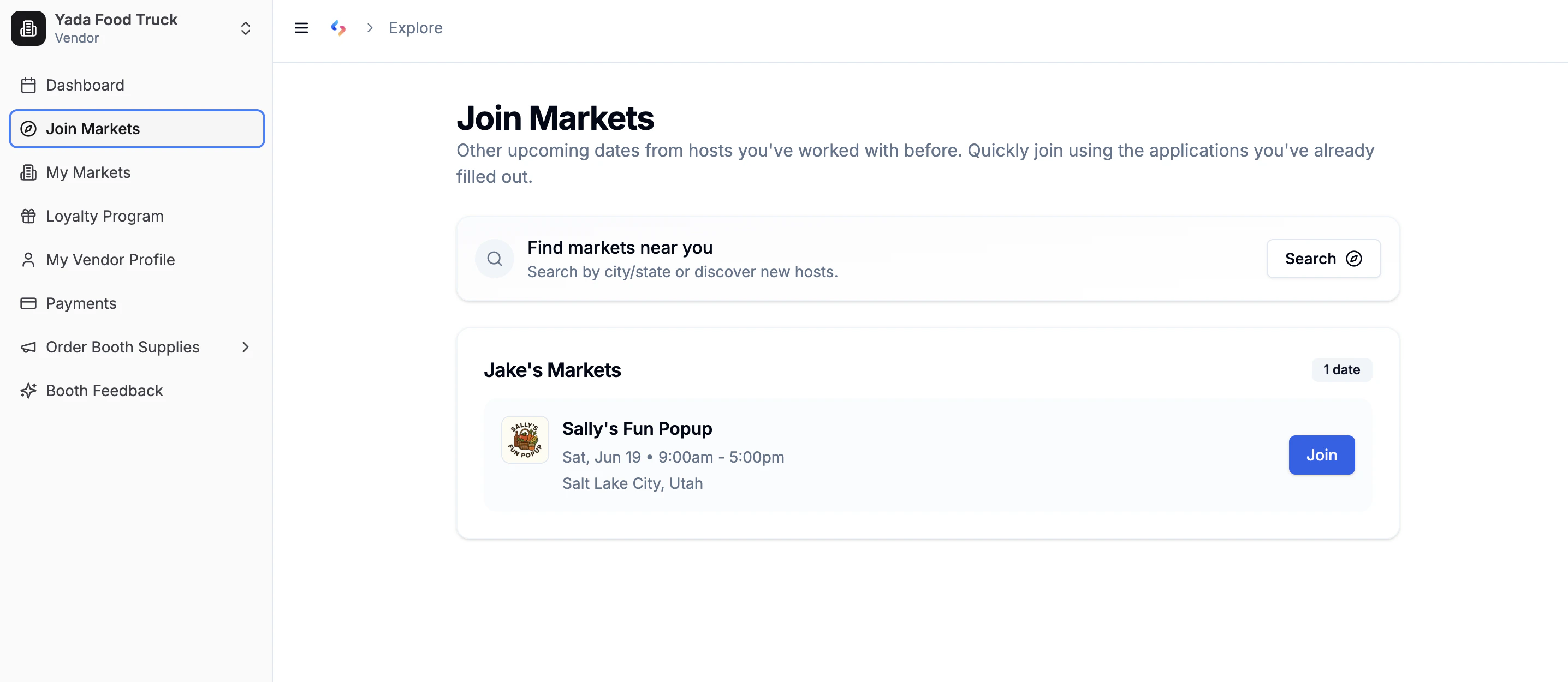
The **Explore** tab shows upcoming markets from hosts you've already worked with. An easy way to find more dates or new events from organizers you know.
### Find Markets (app)
Search for new markets by name, location, state, or "near me." Apply directly from the results.
### Explore (web)
At [seenmarkets.com/v/explore](https://seenmarkets.com/v/explore), browse markets from hosts you've worked with and apply to new dates.
### Find a Local Market (public directory)
Visit [seenmarkets.com/find-a-local-market](https://seenmarkets.com/find-a-local-market) to browse a public directory of all published markets on Seen Markets. You can search by name, browse by state, or use your location to find markets near you. No login required.
## Booth Selection
### Explore (app)
The **Explore** tab shows upcoming markets from hosts you've already worked with. An easy way to find more dates or new events from organizers you know.
### Find Markets (app)
Search for new markets by name, location, state, or "near me." Apply directly from the results.
### Explore (web)
At [seenmarkets.com/v/explore](https://seenmarkets.com/v/explore), browse markets from hosts you've worked with and apply to new dates.
### Find a Local Market (public directory)
Visit [seenmarkets.com/find-a-local-market](https://seenmarkets.com/find-a-local-market) to browse a public directory of all published markets on Seen Markets. You can search by name, browse by state, or use your location to find markets near you. No login required.
## Booth Selection
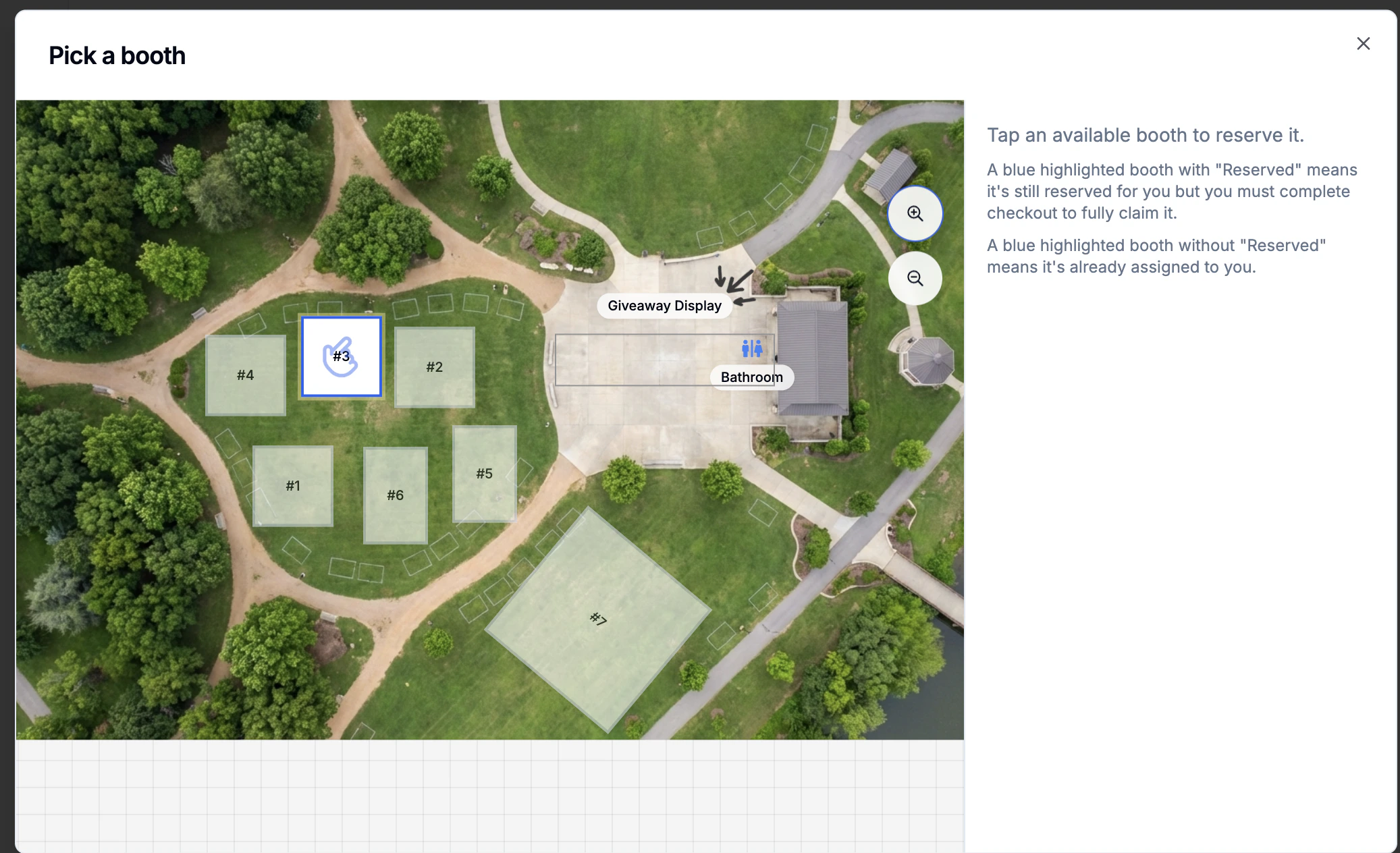 When a host enables booth self-selection:
1. You see the interactive booth map with available booths.
2. Select a booth. **Free booths** confirm immediately; **paid booths** go to Stripe checkout.
3. Reservations have a **time limit** — complete checkout before the hold expires.
If the host assigns your booth manually, you'll see your assignment in the market details and the booth map.
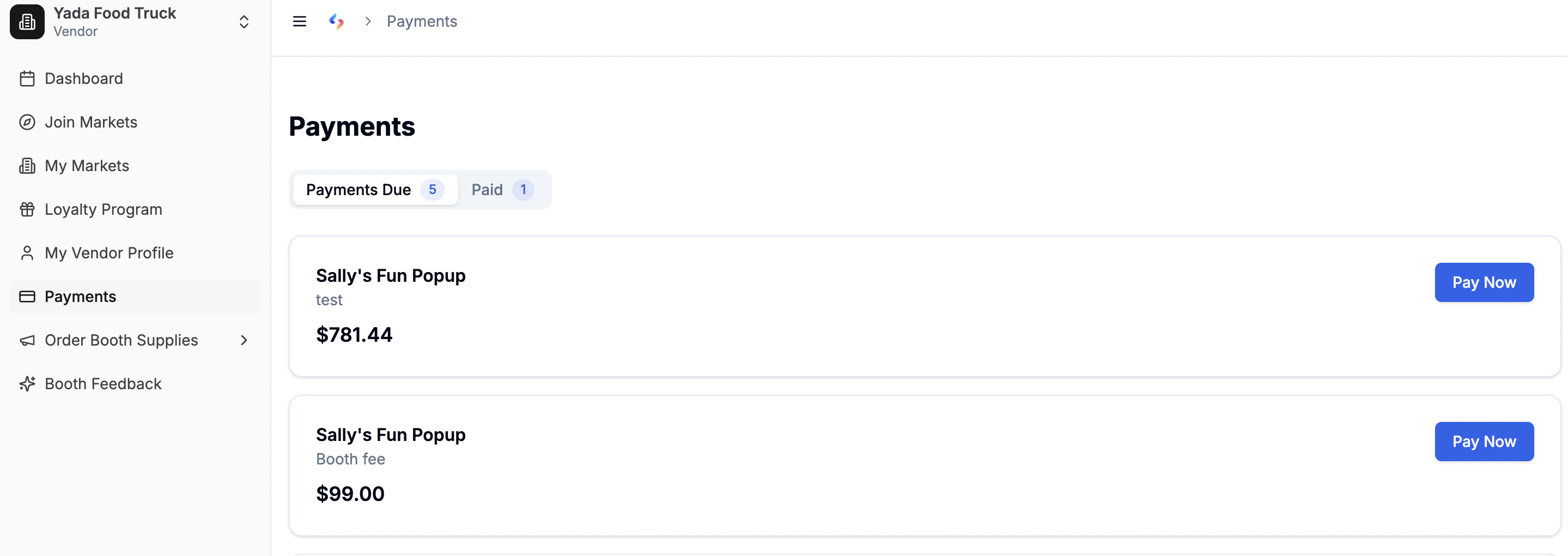
## Payments
### Payment Requests
When a host requests payment (e.g. booth fee):
* You receive an email with a secure Stripe checkout link.
* The request also appears on your dashboard and in the mobile app.
* Tap **Pay Now** to complete the payment.
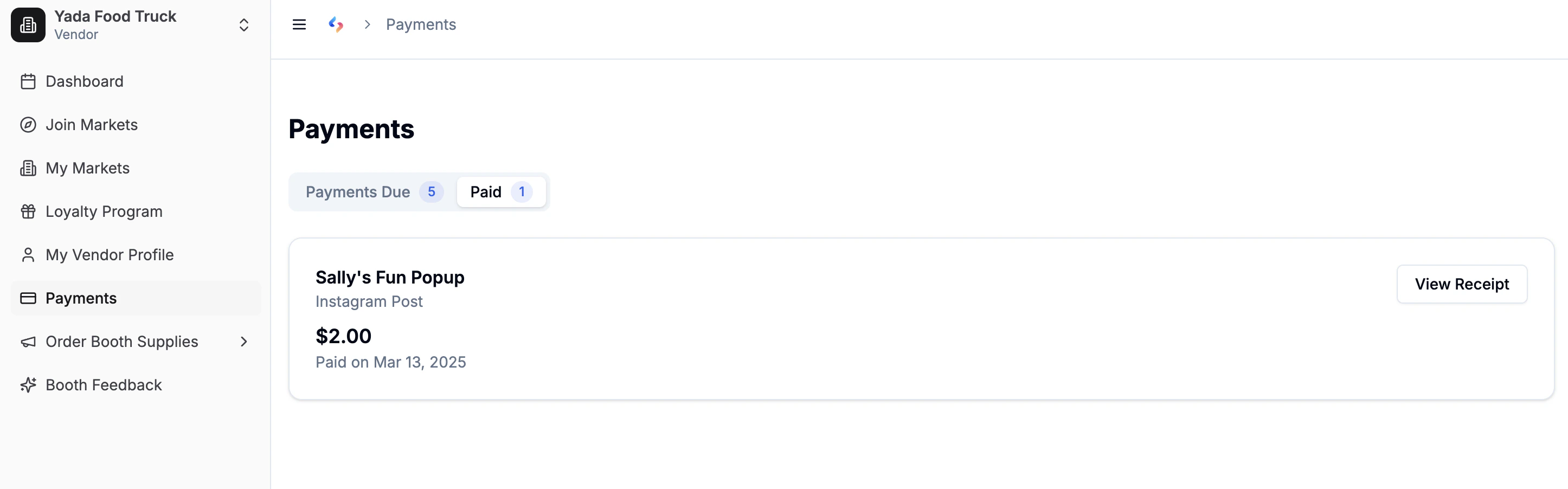
### Payment History
View all past payments at [seenmarkets.com/v/payments](https://seenmarkets.com/v/payments) or in the mobile app under **Menu → Payment History**.
When a host enables booth self-selection:
1. You see the interactive booth map with available booths.
2. Select a booth. **Free booths** confirm immediately; **paid booths** go to Stripe checkout.
3. Reservations have a **time limit** — complete checkout before the hold expires.
If the host assigns your booth manually, you'll see your assignment in the market details and the booth map.
## Payments
### Payment Requests
When a host requests payment (e.g. booth fee):
* You receive an email with a secure Stripe checkout link.
* The request also appears on your dashboard and in the mobile app.
* Tap **Pay Now** to complete the payment.
### Payment History
View all past payments at [seenmarkets.com/v/payments](https://seenmarkets.com/v/payments) or in the mobile app under **Menu → Payment History**.
 ## Direct Messaging
Message market organizers one-on-one from the web portal or mobile app.
* **Web — from your dashboard:** Click **Message host** on any market card to open a thread with that organizer directly.
* **Web — Messages page:** Click **Messages** in the sidebar to see all your threads. Use the pen icon to start a new conversation with any organizer.
* **App:** Tap **Message organizer** from the market details, or go to the **Messages** tab for all conversations.
Every message you send also triggers an email notification to the organizer, and you'll receive an email when they reply — so neither party needs to be actively logged in to stay in the loop.
A blue dot appears next to **Messages** in the sidebar (and on the mobile menu icon) when you have unread messages.
Messages are organized per market so conversations stay in context. For a full walkthrough, see [How to message a market organizer](/how-to/message-organizer).
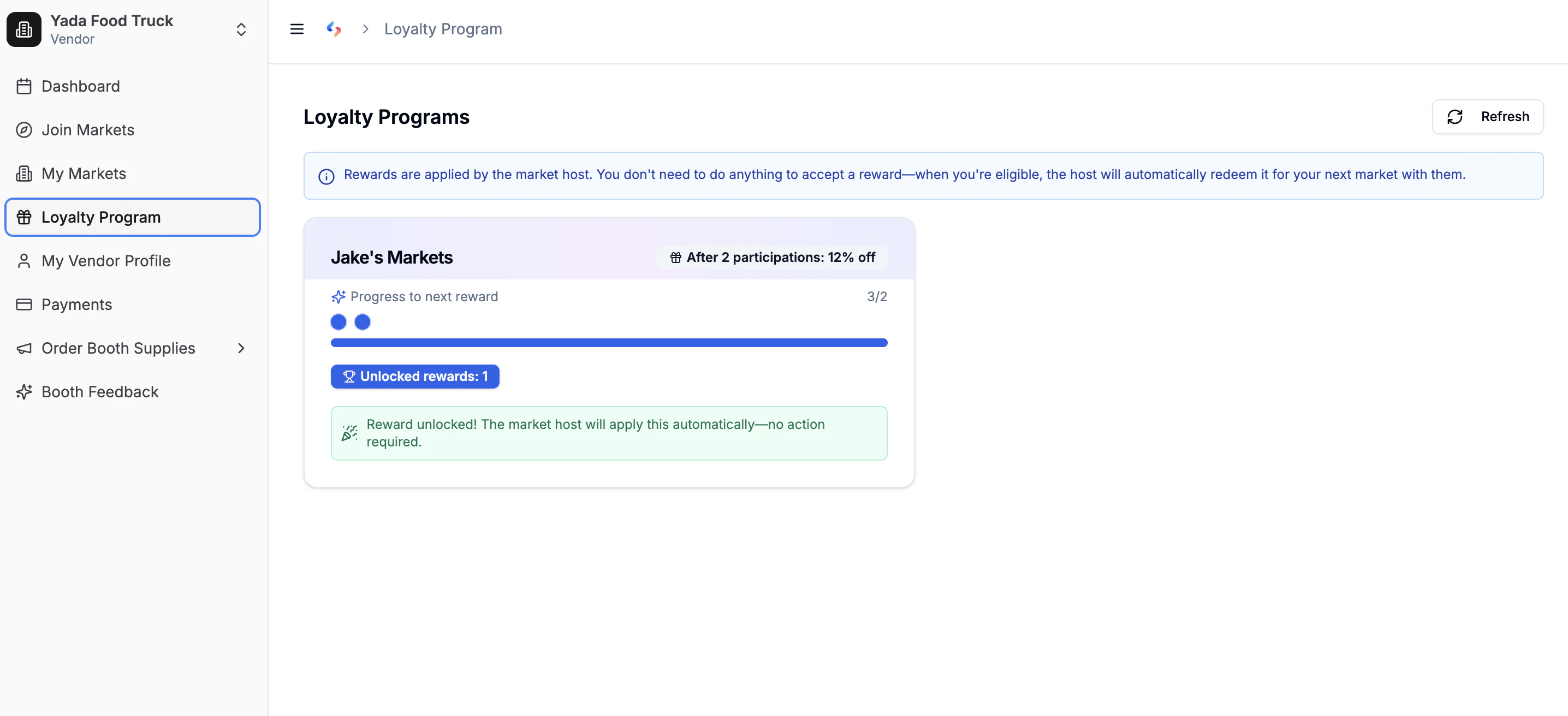
## Loyalty Program
Some hosts run a **loyalty program** that rewards vendors for repeat participation:
* See your progress toward the next reward in the app's **Loyalty** tab or at [seenmarkets.com/v/loyalty-program](https://seenmarkets.com/v/loyalty-program).
* Rewards are typically discounts on booth fees based on number of markets attended.
* Each host's program is separate.
## Direct Messaging
Message market organizers one-on-one from the web portal or mobile app.
* **Web — from your dashboard:** Click **Message host** on any market card to open a thread with that organizer directly.
* **Web — Messages page:** Click **Messages** in the sidebar to see all your threads. Use the pen icon to start a new conversation with any organizer.
* **App:** Tap **Message organizer** from the market details, or go to the **Messages** tab for all conversations.
Every message you send also triggers an email notification to the organizer, and you'll receive an email when they reply — so neither party needs to be actively logged in to stay in the loop.
A blue dot appears next to **Messages** in the sidebar (and on the mobile menu icon) when you have unread messages.
Messages are organized per market so conversations stay in context. For a full walkthrough, see [How to message a market organizer](/how-to/message-organizer).
## Loyalty Program
Some hosts run a **loyalty program** that rewards vendors for repeat participation:
* See your progress toward the next reward in the app's **Loyalty** tab or at [seenmarkets.com/v/loyalty-program](https://seenmarkets.com/v/loyalty-program).
* Rewards are typically discounts on booth fees based on number of markets attended.
* Each host's program is separate.
 ## Profile Management
Keep your vendor profile updated — it's used across all applications.
## Profile Management
Keep your vendor profile updated — it's used across all applications.
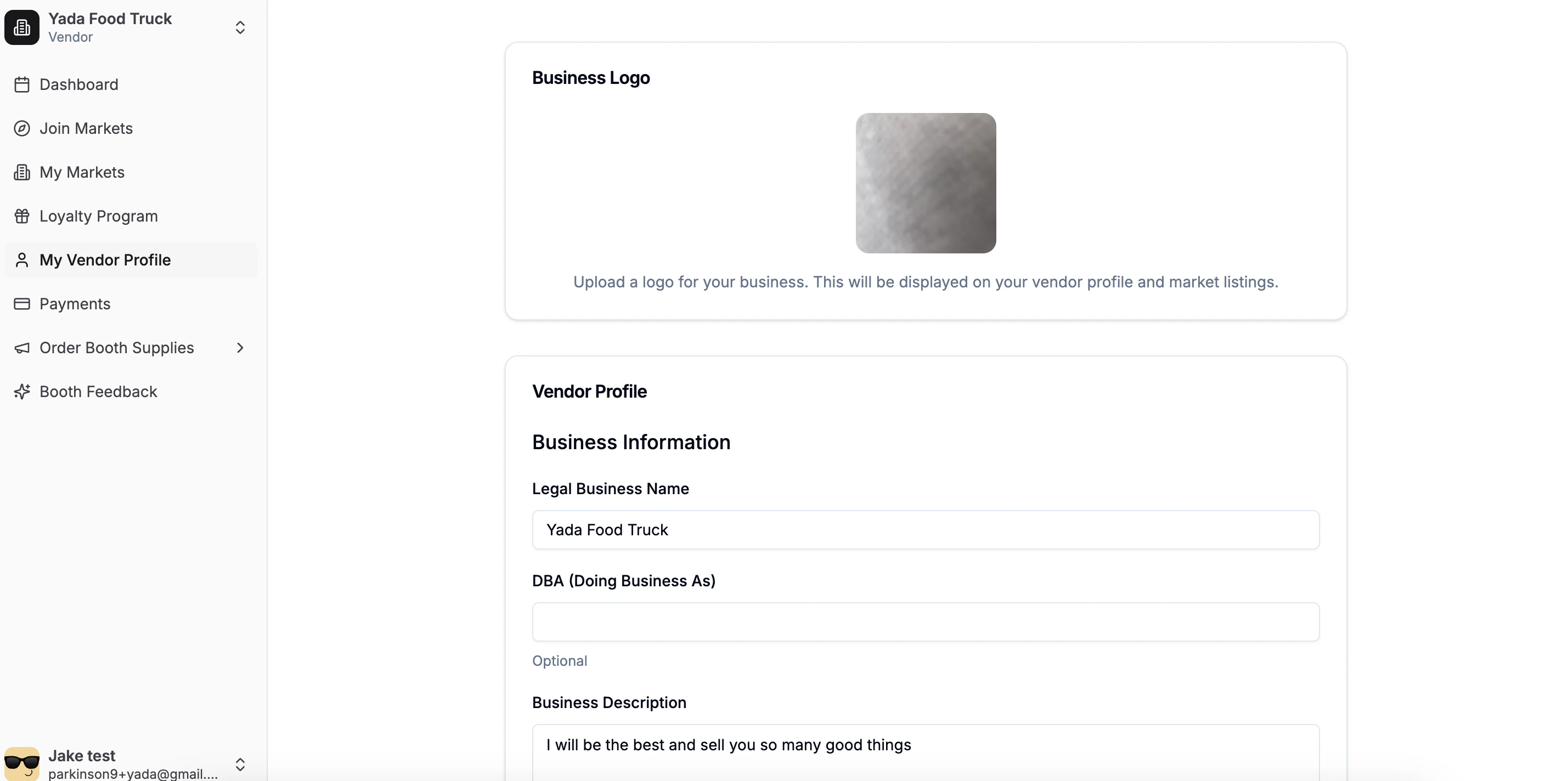 ### What you can edit
* **Business info** — name, description, product categories.
* **Logo** — upload your business logo.
* **Contact** — email, phone.
* **Address** — business address.
* **Social links** — Instagram, TikTok, X, Facebook, YouTube.
* **Payment methods** — Venmo, Cash App, PayPal usernames (for hosts to see).
Your profile info automatically fills future market applications, saving time
and ensuring consistency.
## Market Updates and Notifications
* Hosts can send market-wide updates (schedule changes, weather alerts, setup instructions).
* Updates appear on your dashboard and in the market details.
* You also receive an email notification.
* All updates are preserved for future reference.
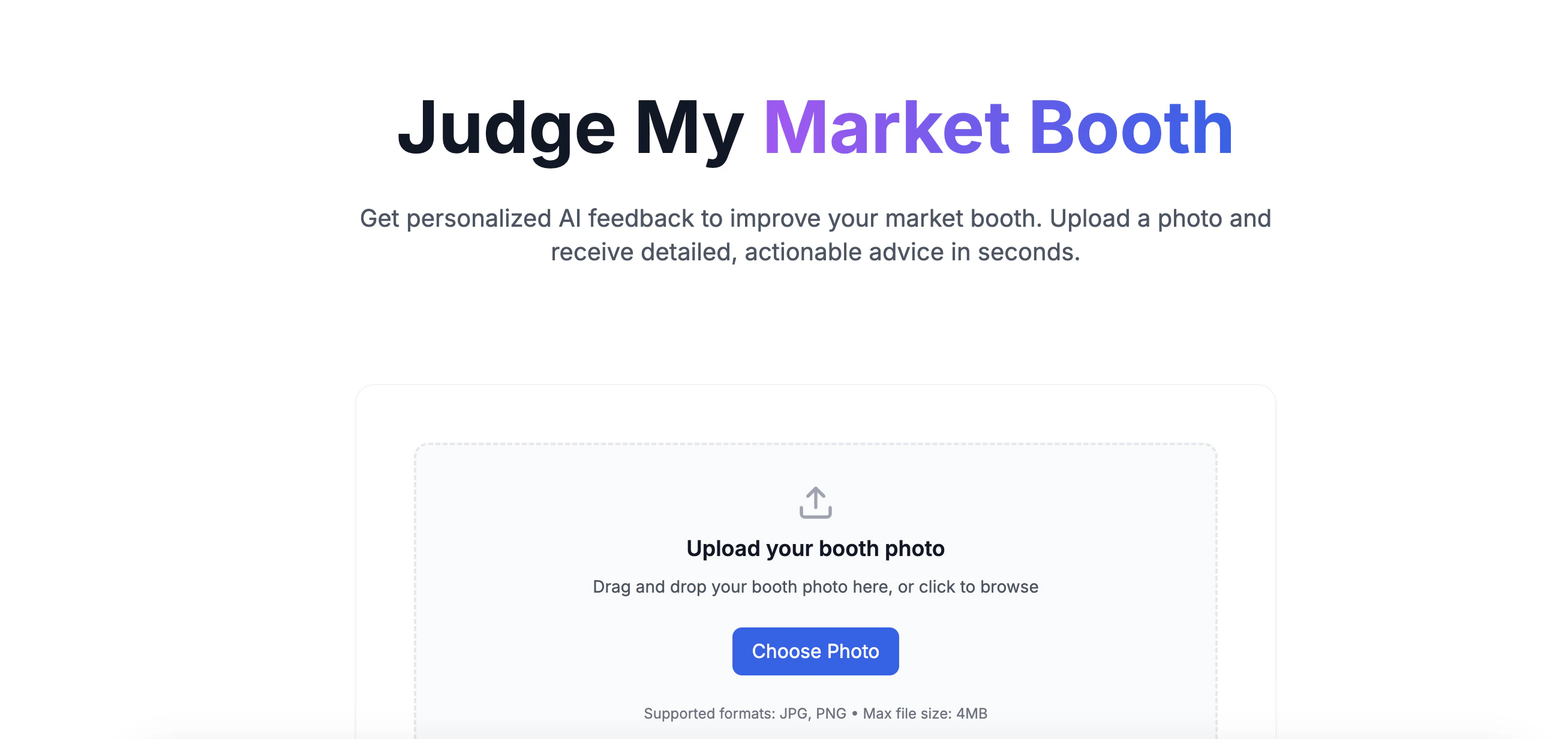
## Booth Design
[seenmarkets.com/judge-my-booth](https://seenmarkets.com/judge-my-booth)
In the mobile app's **Booth Design** tab:
* **Get AI feedback** — upload a photo of your booth setup and get suggestions.
* **Order booth supplies** — labels, packaging, bags, banners, signs, business cards, posters from the Print Shop.
### What you can edit
* **Business info** — name, description, product categories.
* **Logo** — upload your business logo.
* **Contact** — email, phone.
* **Address** — business address.
* **Social links** — Instagram, TikTok, X, Facebook, YouTube.
* **Payment methods** — Venmo, Cash App, PayPal usernames (for hosts to see).
Your profile info automatically fills future market applications, saving time
and ensuring consistency.
## Market Updates and Notifications
* Hosts can send market-wide updates (schedule changes, weather alerts, setup instructions).
* Updates appear on your dashboard and in the market details.
* You also receive an email notification.
* All updates are preserved for future reference.
## Booth Design
[seenmarkets.com/judge-my-booth](https://seenmarkets.com/judge-my-booth)
In the mobile app's **Booth Design** tab:
* **Get AI feedback** — upload a photo of your booth setup and get suggestions.
* **Order booth supplies** — labels, packaging, bags, banners, signs, business cards, posters from the Print Shop.
 ## Best Practices
* Keep contact information current.
* Upload a quality logo — it appears on booth maps and market pages.
* Update product categories so hosts know what you sell.
* Add social links so hosts can promote you.
* Enable push notifications in the app.
* Check your dashboard regularly for updates and payment requests.
* Review booth assignment details before event day.
* Apply to recurring dates early — popular events fill up.
* Choose your booth promptly when self-selection opens.
* Order booth supplies well before the event.
* Review the Digital Market Guide to see what shoppers will see.
## Frequently Asked Questions
Your account is created when you submit your first application or sign up at
seenmarkets.com. The mobile app uses the same account.
On the web: go to your profile page. In the app: tap **Edit Profile** from
the header. Changes apply to all future applications.
Yes. Your complete market history — past participation, payments, and
messages — is available in your dashboard.
Yes. Use the **Message host** button on any market card in your dashboard, or go to the **Messages** page in the sidebar. You can also tap **Message organizer** from the market details in the app, or use the **Messages** tab for all threads. Every DM also sends an email notification so nothing gets missed.
Yes. Your Seen Markets account can be both a vendor and a host. Create an
organization from your account menu and switch between contexts. See the
[become a host](/how-to/become-a-host) guide for details.
## Next Steps
Order booth supplies and signage
Preview your booth in the market guide
Use the mobile app as a vendor
## Best Practices
* Keep contact information current.
* Upload a quality logo — it appears on booth maps and market pages.
* Update product categories so hosts know what you sell.
* Add social links so hosts can promote you.
* Enable push notifications in the app.
* Check your dashboard regularly for updates and payment requests.
* Review booth assignment details before event day.
* Apply to recurring dates early — popular events fill up.
* Choose your booth promptly when self-selection opens.
* Order booth supplies well before the event.
* Review the Digital Market Guide to see what shoppers will see.
## Frequently Asked Questions
Your account is created when you submit your first application or sign up at
seenmarkets.com. The mobile app uses the same account.
On the web: go to your profile page. In the app: tap **Edit Profile** from
the header. Changes apply to all future applications.
Yes. Your complete market history — past participation, payments, and
messages — is available in your dashboard.
Yes. Use the **Message host** button on any market card in your dashboard, or go to the **Messages** page in the sidebar. You can also tap **Message organizer** from the market details in the app, or use the **Messages** tab for all threads. Every DM also sends an email notification so nothing gets missed.
Yes. Your Seen Markets account can be both a vendor and a host. Create an
organization from your account menu and switch between contexts. See the
[become a host](/how-to/become-a-host) guide for details.
## Next Steps
Order booth supplies and signage
Preview your booth in the market guide
Use the mobile app as a vendor