> ## Documentation Index
> Fetch the complete documentation index at: https://guides.seenmarkets.com/llms.txt
> Use this file to discover all available pages before exploring further.
# Send Vendor Updates
> Keep your vendors informed with market-wide announcements
## Overview
Send announcements and updates to all vendors in your market. Updates are delivered via email and appear in each vendor's portal and mobile app for future reference.
## Sending an Update
### From the Web
Go to [seenmarkets.com](https://seenmarkets.com) and open your market's management page.
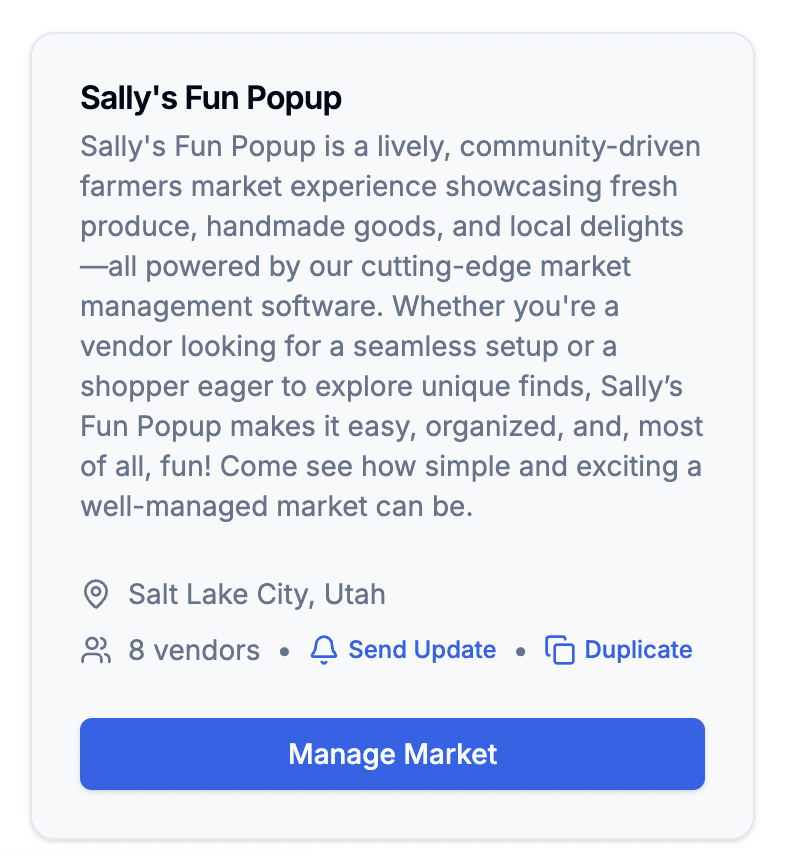
Find the **Send Update** option (or "Notifications" section on the market page).
 Fill out the form:
* **Title** — a clear subject line.
* **Message** — the body of your announcement (supports rich text).
Click **Send Update**. Every vendor in the market receives an email, and the message is posted to their portal / app.
### From the Mobile App
Open a market in the app → tap **Send notification** → enter a title and message → send. Same result — email to all vendors, plus it appears in their app.
## What updates are good for
* Weather alerts and schedule changes
* Setup and teardown instructions
* Market reminders and deadlines
* Policy updates
* General announcements
## Direct Messaging and Market Chat
For conversations with vendors beyond broadcast updates, you have two more options:
### Direct Messages (DMs)
One-on-one private conversations with a specific vendor:
* **Web:** Open the vendor management table → click the message icon on a vendor row.
* **App:** Open a market → vendor list → tap a vendor to DM them. Or use the **Messages** tab.
DMs are per-market, so conversations stay organized by event.
### Market Chat (mobile app)
A **market-wide group chat** where you and your vendors can all communicate in one thread. Access it from the **Messages** tab in the mobile app. Useful for day-of coordination, open Q\&A, or group announcements where you want vendor replies visible to everyone.
Use **Send Update** for formal announcements (email + portal). Use **DMs**
for private conversations with one vendor. Use **Market Chat** for open
group discussion.
## Best Practices
* Use clear, descriptive titles.
* Keep messages concise and actionable.
* Include all relevant details (dates, locations, requirements).
* Specify any required actions from vendors.
* Send updates during business hours when possible.
* Give adequate notice for changes.
* Avoid last-minute announcements unless urgent.
## Frequently Asked Questions
All vendors currently in your market receive the update via email and in
their portal/app.
Yes. All updates are preserved in the vendor portal and mobile app.
Vendors can message you directly using the built-in DM feature. They can
start a conversation from the market details in their portal or the mobile
app.
## Next Steps
Manage your vendor relationships
Send updates and DMs from the app
Update vendor booth assignments
Fill out the form:
* **Title** — a clear subject line.
* **Message** — the body of your announcement (supports rich text).
Click **Send Update**. Every vendor in the market receives an email, and the message is posted to their portal / app.
### From the Mobile App
Open a market in the app → tap **Send notification** → enter a title and message → send. Same result — email to all vendors, plus it appears in their app.
## What updates are good for
* Weather alerts and schedule changes
* Setup and teardown instructions
* Market reminders and deadlines
* Policy updates
* General announcements
## Direct Messaging and Market Chat
For conversations with vendors beyond broadcast updates, you have two more options:
### Direct Messages (DMs)
One-on-one private conversations with a specific vendor:
* **Web:** Open the vendor management table → click the message icon on a vendor row.
* **App:** Open a market → vendor list → tap a vendor to DM them. Or use the **Messages** tab.
DMs are per-market, so conversations stay organized by event.
### Market Chat (mobile app)
A **market-wide group chat** where you and your vendors can all communicate in one thread. Access it from the **Messages** tab in the mobile app. Useful for day-of coordination, open Q\&A, or group announcements where you want vendor replies visible to everyone.
Use **Send Update** for formal announcements (email + portal). Use **DMs**
for private conversations with one vendor. Use **Market Chat** for open
group discussion.
## Best Practices
* Use clear, descriptive titles.
* Keep messages concise and actionable.
* Include all relevant details (dates, locations, requirements).
* Specify any required actions from vendors.
* Send updates during business hours when possible.
* Give adequate notice for changes.
* Avoid last-minute announcements unless urgent.
## Frequently Asked Questions
All vendors currently in your market receive the update via email and in
their portal/app.
Yes. All updates are preserved in the vendor portal and mobile app.
Vendors can message you directly using the built-in DM feature. They can
start a conversation from the market details in their portal or the mobile
app.
## Next Steps
Manage your vendor relationships
Send updates and DMs from the app
Update vendor booth assignments