> ## Documentation Index
> Fetch the complete documentation index at: https://guides.seenmarkets.com/llms.txt
> Use this file to discover all available pages before exploring further.
# Email Marketing Integrations
> Sync your vendors and shoppers to Flodesk or Mailchimp
## Overview
Connect your Seen Markets account with Flodesk or Mailchimp to automatically sync your vendor and shopper lists for email marketing. You can also export lists manually if you prefer to use a different email marketing platform.
## Setting Up Integrations
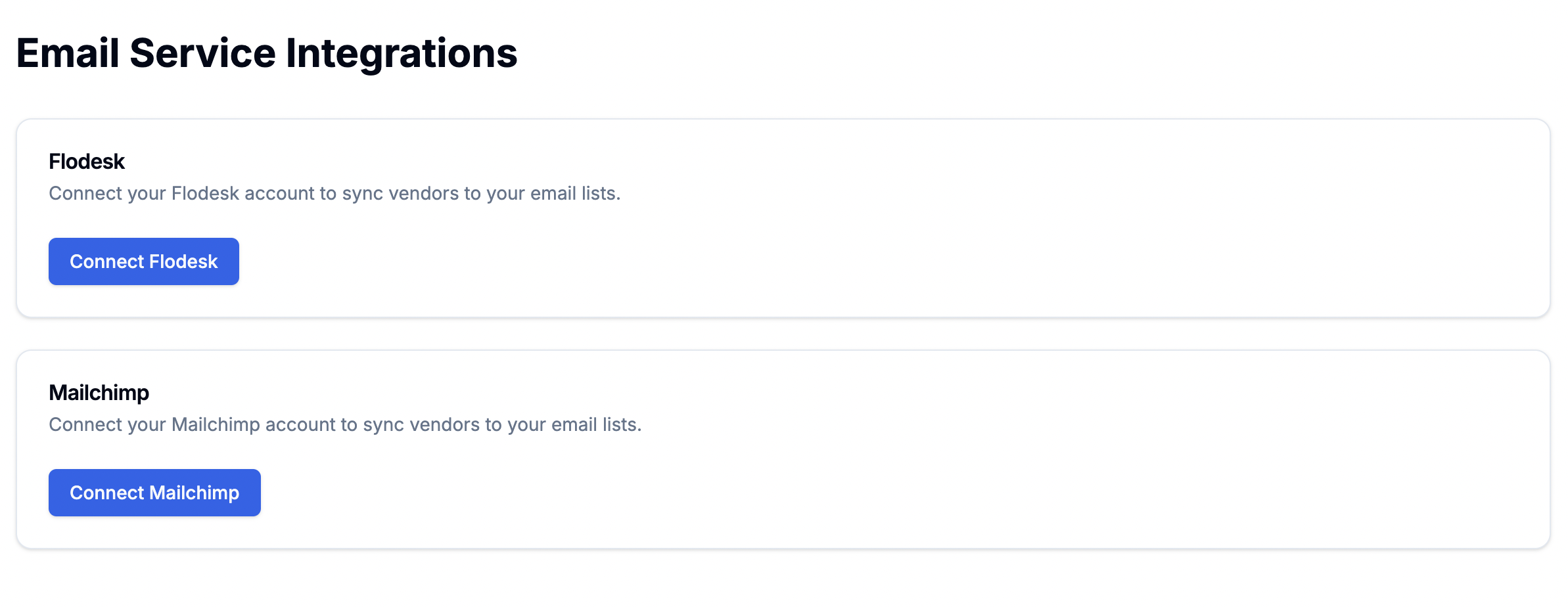
Visit [seenmarkets.com/settings/email-services](https://seenmarkets.com/settings/email-services) to connect your email marketing accounts:
 ### Flodesk Integration
1. **Get Your API Key**
* Visit [Flodesk's API Key Guide](https://help.flodesk.com/en/articles/8128775-about-api-keys)
* Follow instructions to create an API key
* Copy the generated key
2. **Connect to Seen Markets**
* Click "Connect Flodesk" button
* Paste your API key in the form
* Save the connection
### Mailchimp Integration
1. **Get Your API Key**
* Visit [Mailchimp's API Key Guide](https://mailchimp.com/help/about-api-keys/)
* Generate a new API key
* Copy the generated key
2. **Connect to Seen Markets**
* Click "Connect Mailchimp" button
* Paste your API key in the form
* Save the connection
## Syncing Your Lists
### Vendor List Sync
Access your vendor list at [seenmarkets.com/marketing-vendors](https://seenmarkets.com/marketing-vendors) to:
1. View all vendors across your markets
2. Select vendors to sync
3. Click "Sync to Email List"
4. Choose your connected platform
5. Confirm the sync
### Shopper List Sync
Access your shopper list at [seenmarkets.com/marketing-customers](https://seenmarkets.com/marketing-customers) to:
1. View all shoppers who have:
* Joined your community
* Entered giveaways
* Visited your markets
2. Select shoppers to sync
3. Click "Sync to Email List"
4. Choose your connected platform
5. Confirm the sync
## Manual Export Option
If you prefer not to set up API integrations, you can export your lists manually:
### Exporting Vendors
1. Go to marketing-vendors page
2. Select vendors to export
3. Click "Export CSV"
4. Import the CSV into your preferred email marketing platform
### Exporting Shoppers
1. Go to marketing-customers page
2. Select shoppers to export
3. Click "Export CSV"
4. Import the CSV into your preferred email marketing platform
## Best Practices
* Keep API keys secure - Don't share keys publicly - Rotate keys
periodically - Remove unused integrations
* Sync lists regularly - Verify sync success - Remove duplicates - Maintain
list segments
* Follow email marketing laws - Respect opt-out requests - Maintain clean
lists - Track engagement metrics
## Frequently Asked Questions
Sync your lists whenever you have new vendors or shoppers. Regular syncs
ensure your email lists stay current.
Exports include contact information and basic profile details while
maintaining privacy and data protection standards.
Yes, all integrations use secure API connections, and we never store your
email marketing platform's API keys in plain text.
## Next Steps
Manage your vendor relationships
Communicate with your vendors
Grow your shopper community
{" "}
### Flodesk Integration
1. **Get Your API Key**
* Visit [Flodesk's API Key Guide](https://help.flodesk.com/en/articles/8128775-about-api-keys)
* Follow instructions to create an API key
* Copy the generated key
2. **Connect to Seen Markets**
* Click "Connect Flodesk" button
* Paste your API key in the form
* Save the connection
### Mailchimp Integration
1. **Get Your API Key**
* Visit [Mailchimp's API Key Guide](https://mailchimp.com/help/about-api-keys/)
* Generate a new API key
* Copy the generated key
2. **Connect to Seen Markets**
* Click "Connect Mailchimp" button
* Paste your API key in the form
* Save the connection
## Syncing Your Lists
### Vendor List Sync
Access your vendor list at [seenmarkets.com/marketing-vendors](https://seenmarkets.com/marketing-vendors) to:
1. View all vendors across your markets
2. Select vendors to sync
3. Click "Sync to Email List"
4. Choose your connected platform
5. Confirm the sync
### Shopper List Sync
Access your shopper list at [seenmarkets.com/marketing-customers](https://seenmarkets.com/marketing-customers) to:
1. View all shoppers who have:
* Joined your community
* Entered giveaways
* Visited your markets
2. Select shoppers to sync
3. Click "Sync to Email List"
4. Choose your connected platform
5. Confirm the sync
## Manual Export Option
If you prefer not to set up API integrations, you can export your lists manually:
### Exporting Vendors
1. Go to marketing-vendors page
2. Select vendors to export
3. Click "Export CSV"
4. Import the CSV into your preferred email marketing platform
### Exporting Shoppers
1. Go to marketing-customers page
2. Select shoppers to export
3. Click "Export CSV"
4. Import the CSV into your preferred email marketing platform
## Best Practices
* Keep API keys secure - Don't share keys publicly - Rotate keys
periodically - Remove unused integrations
* Sync lists regularly - Verify sync success - Remove duplicates - Maintain
list segments
* Follow email marketing laws - Respect opt-out requests - Maintain clean
lists - Track engagement metrics
## Frequently Asked Questions
Sync your lists whenever you have new vendors or shoppers. Regular syncs
ensure your email lists stay current.
Exports include contact information and basic profile details while
maintaining privacy and data protection standards.
Yes, all integrations use secure API connections, and we never store your
email marketing platform's API keys in plain text.
## Next Steps
Manage your vendor relationships
Communicate with your vendors
Grow your shopper community
{" "}