> ## Documentation Index
> Fetch the complete documentation index at: https://guides.seenmarkets.com/llms.txt
> Use this file to discover all available pages before exploring further.
# Digital Market Guide
> Create an interactive digital experience for your shoppers
## Overview
The Digital Market Guide is an interactive page shoppers access via QR code or direct link. It lets them see your booth map, discover vendors, enter giveaways, and learn about your market — all from their phone. Every market on Seen Markets automatically includes a Digital Market Guide.
## What Shoppers See
The guide has four tabs:
### Map
The interactive booth map. Shoppers can see booth locations, tap a booth to see which vendor is there, and navigate the market layout. This is the same map you design in the [Booth Map Designer](/essentials/booth-map).
### Join
A community signup form where visitors can enter their name and email to join your market's mailing list. This is how you grow your shopper audience for future events and marketing.
### Giveaway
Lists all active giveaways for the market. Shoppers can tap a giveaway to enter directly. See [Giveaways](/essentials/giveaways) for details on creating and managing giveaways.
### Info
Market details including:
* Event dates and times.
* Location and address.
* Social media links (Instagram, TikTok, X, Facebook, YouTube).
* Custom links you've added (e.g. parking info, sponsor page).
* FAQs for shoppers.
## Accessing Your Guide
Your Digital Market Guide is automatically created when you create a market. To access it:
From your dashboard, open the market you want to share.
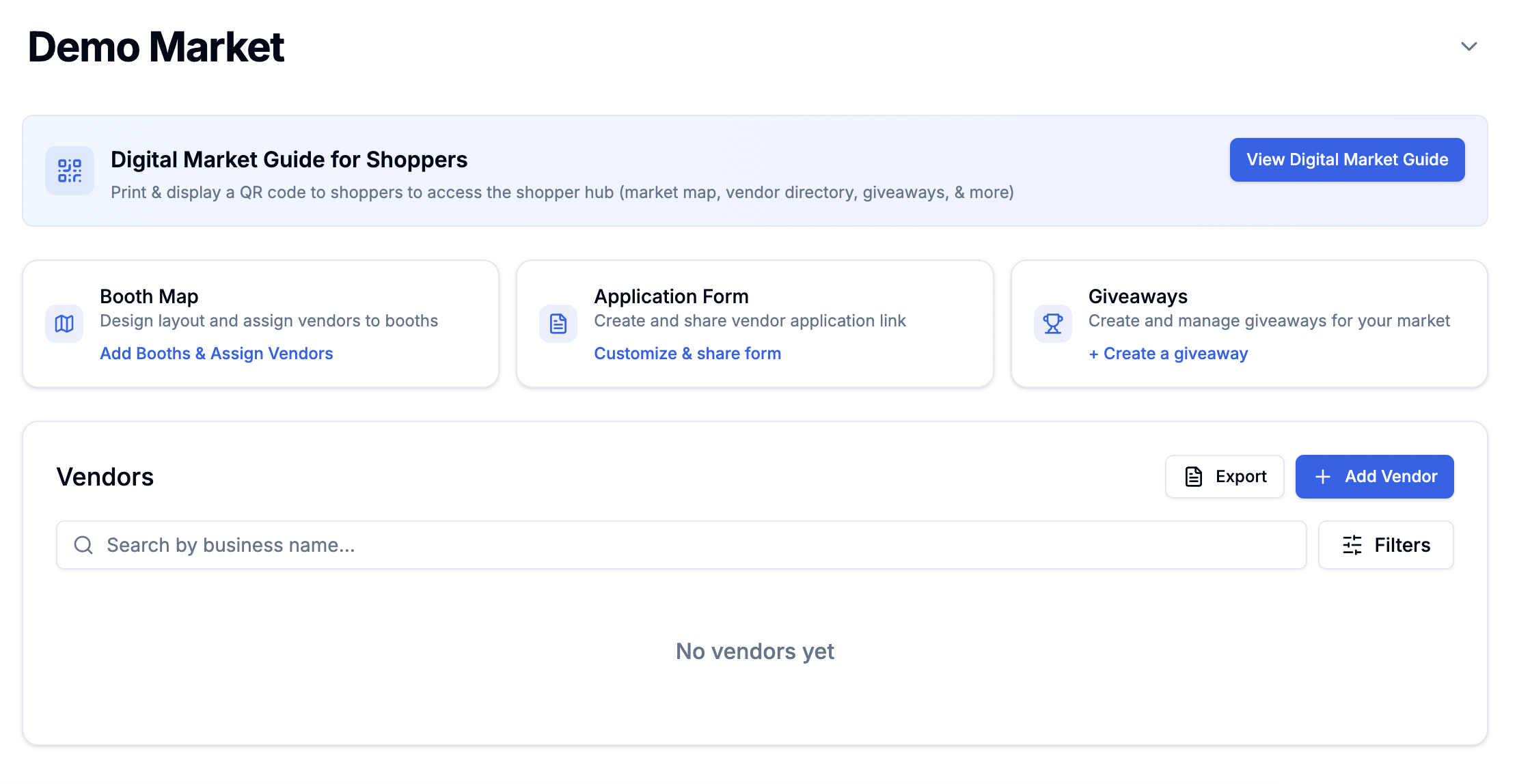 Click the **Digital Market Guide** card to:
* Preview the guide exactly as shoppers see it.
* Download your market's QR code.
* Copy the shareable link.
The guide URL is: `https://seenmarkets.com/hub/[your-market-id]`
The guide updates automatically as you make changes — update the booth map,
add giveaways, edit FAQs, and shoppers see the latest version immediately.
## QR Code
### Downloading
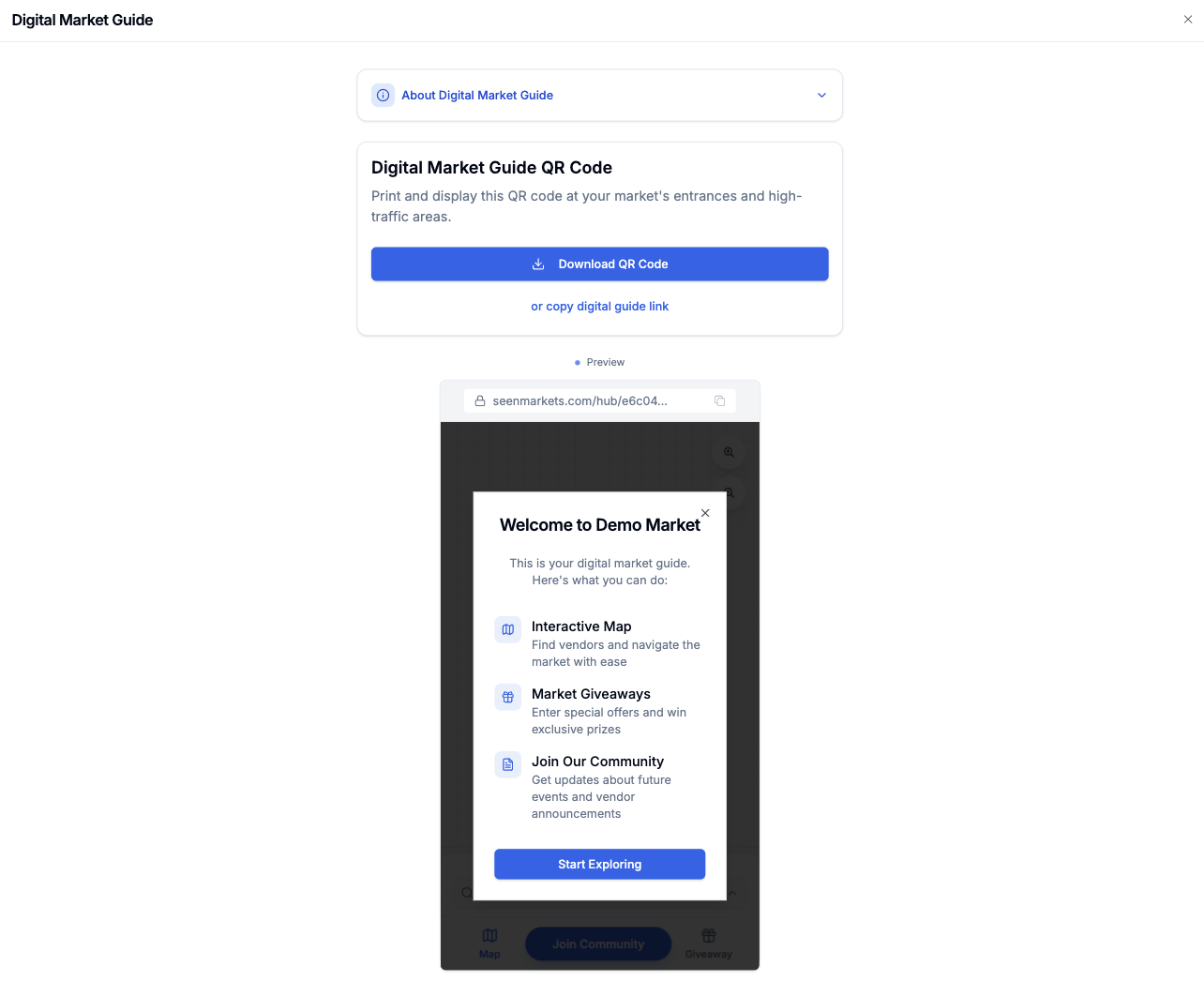
From the Digital Market Guide preview, click **Download QR Code** to get your market's unique QR code.
Click the **Digital Market Guide** card to:
* Preview the guide exactly as shoppers see it.
* Download your market's QR code.
* Copy the shareable link.
The guide URL is: `https://seenmarkets.com/hub/[your-market-id]`
The guide updates automatically as you make changes — update the booth map,
add giveaways, edit FAQs, and shoppers see the latest version immediately.
## QR Code
### Downloading
From the Digital Market Guide preview, click **Download QR Code** to get your market's unique QR code.
 ### Sharing from the Mobile App
In the Seen Markets mobile app, open a market and tap **Share → Digital Market Guide**. You can share the link or download the QR code directly from your phone.
### Distribution Ideas
* Print the QR code on signage at market entrances.
* Order professional QR code signs through the [Print Shop](/services/print-shop).
* Include in social media posts and event promotions.
* Add to your website or email newsletters.
* Display at each vendor booth so shoppers can scan and explore.
## What Makes It Powerful
The guide becomes more useful as you set up your market:
* **Booth map** — shoppers navigate the market and find specific vendors.
* **Giveaways** — drives engagement and collects shopper contact info.
* **Community signup** — builds your email list for future events and marketing.
* **Vendor directory** — shoppers discover who's at the market before or during the event.
Combine the Digital Market Guide with giveaways for maximum impact. Shoppers
scan the QR code, enter giveaways, discover vendors, and join your community
— all in one visit.
## Frequently Asked Questions
Yes. Any changes you make to the booth map, giveaways, FAQs, or market
details are reflected immediately in the guide.
Yes. The guide is a mobile-optimized web page — shoppers don't need to
download an app. They just scan the QR code or open the link.
Visitors who sign up through the Join tab appear in your **All Shoppers**
list at seenmarkets.com/marketing-customers. You can sync them to Mailchimp
or Flodesk for email marketing.
## Next Steps
Design the map shoppers will see
Create giveaways to drive engagement
Order QR code signage for your market
### Sharing from the Mobile App
In the Seen Markets mobile app, open a market and tap **Share → Digital Market Guide**. You can share the link or download the QR code directly from your phone.
### Distribution Ideas
* Print the QR code on signage at market entrances.
* Order professional QR code signs through the [Print Shop](/services/print-shop).
* Include in social media posts and event promotions.
* Add to your website or email newsletters.
* Display at each vendor booth so shoppers can scan and explore.
## What Makes It Powerful
The guide becomes more useful as you set up your market:
* **Booth map** — shoppers navigate the market and find specific vendors.
* **Giveaways** — drives engagement and collects shopper contact info.
* **Community signup** — builds your email list for future events and marketing.
* **Vendor directory** — shoppers discover who's at the market before or during the event.
Combine the Digital Market Guide with giveaways for maximum impact. Shoppers
scan the QR code, enter giveaways, discover vendors, and join your community
— all in one visit.
## Frequently Asked Questions
Yes. Any changes you make to the booth map, giveaways, FAQs, or market
details are reflected immediately in the guide.
Yes. The guide is a mobile-optimized web page — shoppers don't need to
download an app. They just scan the QR code or open the link.
Visitors who sign up through the Join tab appear in your **All Shoppers**
list at seenmarkets.com/marketing-customers. You can sync them to Mailchimp
or Flodesk for email marketing.
## Next Steps
Design the map shoppers will see
Create giveaways to drive engagement
Order QR code signage for your market